Download & Usage
BoBiCo Shader is available on Github, Discord and S&Box Workshop.
In this page, you'll see how to download and install our shader properly. With using the shader and the Material editor. It'll be very easy drag-n-drop install and simple usage.
Quick Download
Download the files from the place you want to download by clicking the buttons below.
Download instructions may different. But, files you'll receive are the same. It'll include shader files with source code, ready-to-use assets and more.




Github & Discord
Installing from Github and Discord will be the same with same features and same files. Installation is also very easy.
Firstly, you will have to download the files from our Github or join our Discord and install the shader files in shader-hub channel.
We encourage you to join our Discord Server to receive latest news, what we're working on and early access to beta versions if available for free.
Installing (Github & Discord)
- Firstly, you'll receive a zip file called BoBICo Shader.zip after you downloaded which can be extracted to access the files inside.
- After you extracted, copy the folder "BoBiCo Shader" into your project's "Assets" folder. After that, BoBiCo Shader will be installed!

S&box project files are located in (Drive name)\Users\Your Username\Documents\s&box projects\!
If you created your project in somewhere. install the shader files into there.
S&box Workshop
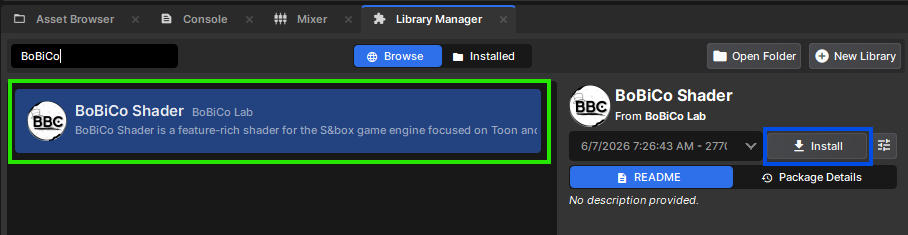
For installing from S&box Workshop. You can find our shader in the Library Manager. It's named as BoBiCo Shader and very easy to install.
Installing (S&box Workshop)
- Click Library Manager. Search BoBiCo Shader.
- When found, Click Install. You can also select versions if available!
Shader usage
To use your shader, create a Material or use the existing material. Open the Material and Material Editor will open. From the left-upper place, you'll see your currently assigned shader in Green Text.
Click it and search BoBiCo. When found, click it and it'll assign our shader to your material.
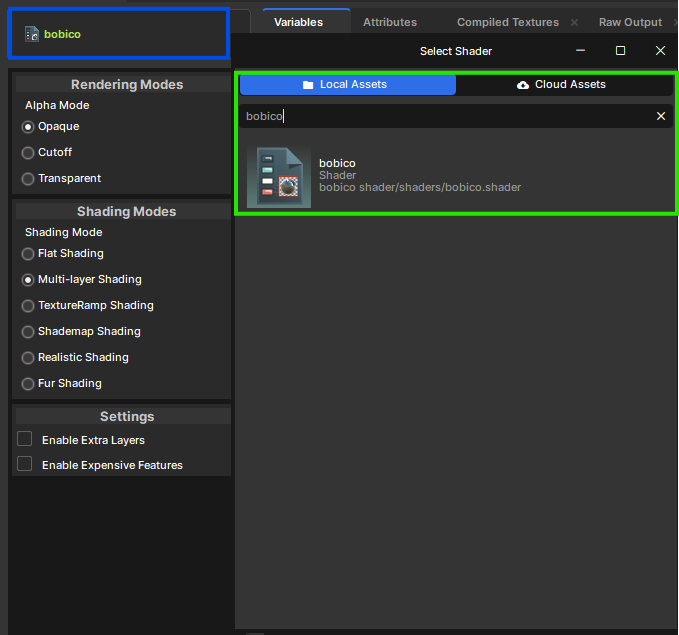
From there, you can start assigning your texture and using the shader! Check Feature Introduction again or start browsing the feature you want to know about!
Using Expensive Tangents
In S&box, our shader's shading may appears a bit broken or jaggy and causes seams when you use on almost every models. It's because ModelDoc don't use "Expensive Tangents" by default. And, We strongly recommend to use them for your models when using with our shader.
We can enable to avoid broken shading and it's simple. All you need to do is open the VMDL of your model in the ModelDoc. Right-click the your model's mesh from the RenderMeshList. Click Add RenderMeshMarkup. And check Use Expensive Tangents. Repeat for every meshes in the RenderMeshList if your model has bodygroups. Compile your model again (Press F9) and it'll be fixed.
That's the way you avoid broken and jaggy shading with our shader. If someone ask about the shading issue, please point them to here.