Render Modes
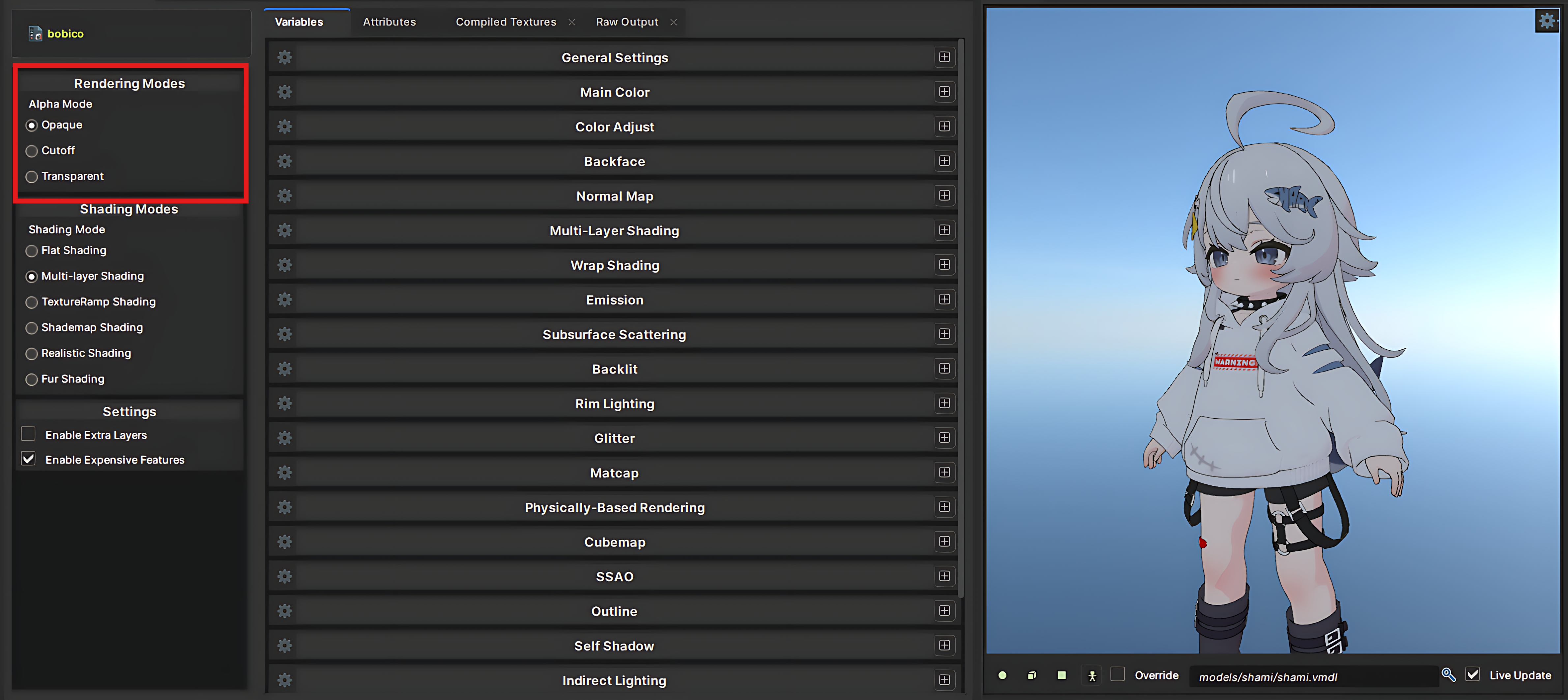
Our shader has rendering modes for rendering your material in different states. For changing the Render modes. You can click and select the mode you want to use at the left-side bar. Opaque, Cutoff and Transparent will be available for you to use.
Opaque Mode
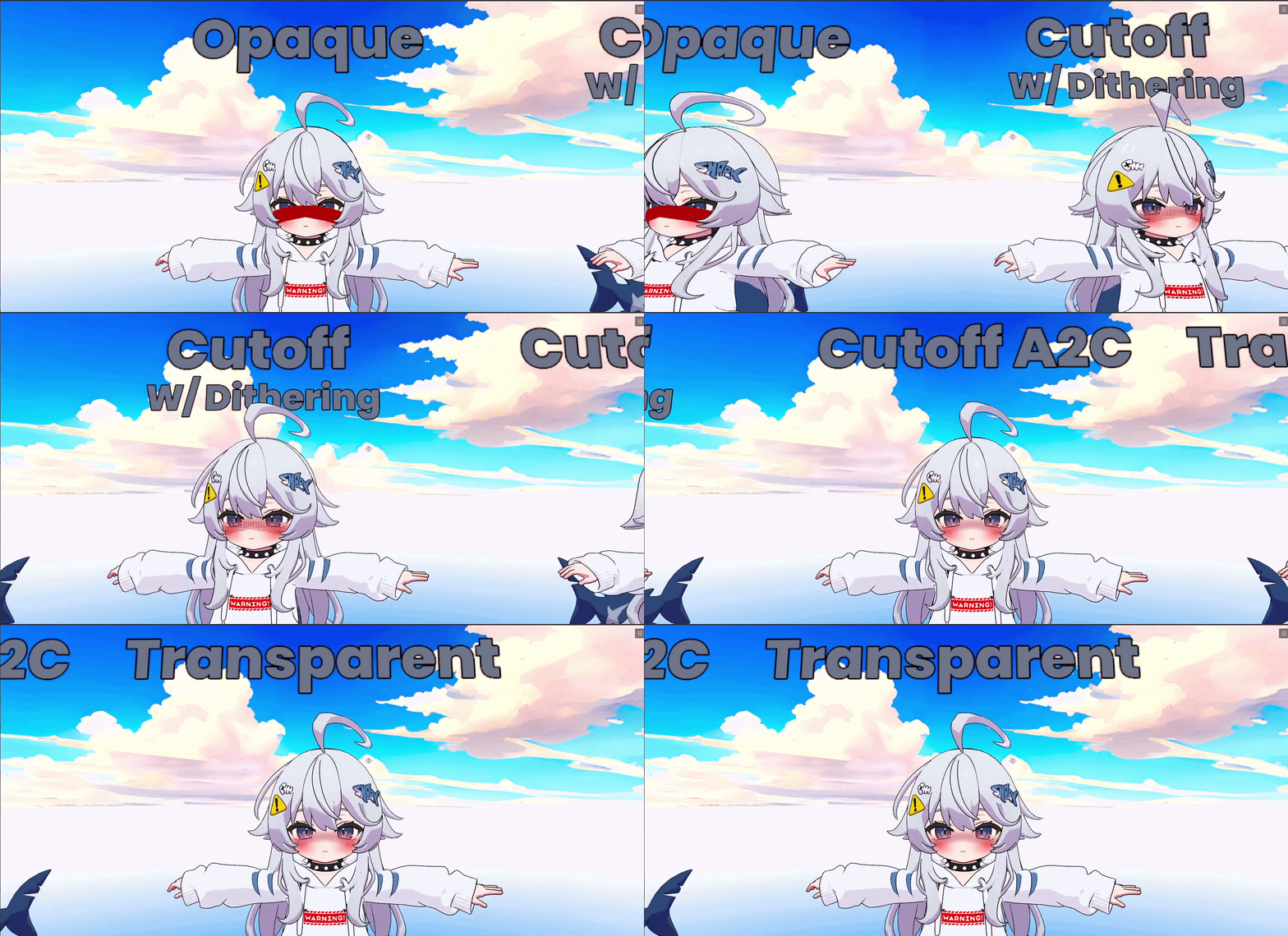
This rendering mode is used for most use-cases with almost anything except for transparency objects. You should always use this for most of your materials if you don't have any reasons to use others.
Cutoff Mode
This rendering mode is like Opaque. But, it allows basic transparency by deciding the pixel to render or not. It doesn't support smooth alpha. You can use this mode in objects with holes or anime hair cards.
We do support some fancy options to smooth out Cutoff. Which are Dither Alpha and Alpha To Coverage (A2C). Dither Alpha adds noises between the transition two sharp alphas. Alpha To Coverage converts an object's transparency (alpha value) into an anti-aliased sub-pixel mask using Multi-Sample Anti-Aliasing (MSAA).
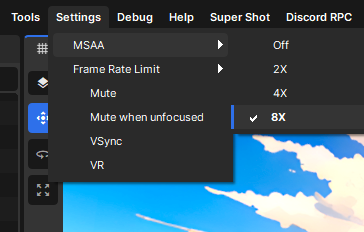
You can change the samples of MSAA in your editor by doing this! Doing this will improve Alpha To Coverage quality and Fur alpha.
Transparent Mode
This rendering mode supports full transparency for using stuff like an alpha mask or using the existing alpha channel from the texture. You can use this rendering mode for most of the transparent objects such as "Glass". For anime character, expressions such as Blush, Tear and more use Transparent mode.
This rendering mode don't cast Shadows as it's not written to depth.