💡 General Settings
The General Settings section is for controlling the main behavior of the material, such a limiting the brightness, controlling the sun lighting direction and more. We'll add more settings along the updates.
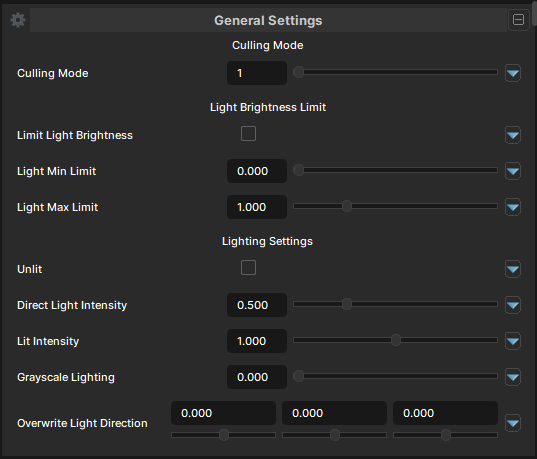
General Settings
Culling Mode
- UI Type : Slider
Int- Range :
0 - 4
- Range :
Controls the Culling behavior of the material. By default, Double-sided is used which will render both backfaces and frontfaces . You can use the slider to control it. Keep in mind that Outlines won't be affected as they only render backfaces only for correct behavior. They will still show up even backfaces are culled which may look weird. But, that's how it should work.
| Number | Mode | Information |
|---|---|---|
| 1 | Double-Sided | Render both Backfaces and Frontfaces. No culling is done in this mode. |
| 2 | Backface | Culls Backfaces. It'll not render the backfaces of the mesh. |
| 3 | Frontface | Culls Frontfaces. It'll not render the frontfaces of the mesh. Only use when needed. |
| 4 | Both | Culls both sides which results in an invisible mesh. |
Light Brightness Limit
Limit Light Brightness
- UI Type : Toggle
Enable the light brightness limiting. This can be used when your model is too-bright in light-intensive areas.
Light Min Limit
- UI Type : Slider
Float- Range :
0.0 - 1.0
- Range :
Controls the minimum limit of the lighting affectiveness.
Light Max Limit
- UI Type : Slider
Float- Range :
0.0 - 4.0
- Range :
Controls the maximum limit of the lighting affectiveness.
Lighting Settings
Unlit
- UI Type : Toggle
Make the material rendered fully unlit (stop receiving lighting). Resulting the material to not receive any lightings such as scene light sources, environment lighting and shadows.
Direct Light Intensity
- UI Type : Slider
Float- Range :
0.0 - 2.0
- Range :
Controls how much direct lights affects the material.
A value of 0 will completely make the material doesn't receive the direct lightings from point light or spot light,
while a value of more than 1 will make the direct lighting more brighter or intensive. sun lighting isn't controllable yet.
Lit Intensity
- UI Type : Slider
Float- Range :
0.0 - 2.0
- Range :
Controls how much the model is lit without any lightings.
A value of 0 will completely make the material fully black.
while a value of more than 1 will make the material more brighter.
Grayscale Lighting
- UI Type : Slider
Float- Range :
0.0 - 1.0
- Range :
Controls the received lighting saturation. This can help avoid over-saturation with your model in maps with oversaturated lightings. More value will make the lighting less saturate and leads to fully grayscale if used fully.
Override Light Direction
- UI Type : Float3 XYZ
- Range :
-180.0 - 180.0
- Range :
Overrides the sun light's direction for artistic controls. You can use this slider for overriding the direction of the sun light when you want to change the direction of the shading only without rotating the actual sun light itself.