Outlines
Outlines section is for adding stylized outlines for cartoony characters or objects to make them more pop and cartoony. Our shader uses Inverted-hull outlines which gives the best outlines and used by many toon shaders. Unlike the existing Highlight outlines which only give edge outlines. Inverted-hull outliens gives full quality outlines which also show up on the model itself.

With the lack of Multi-pass support in S&box. We implemented our outlines in Geometry Shader instead which don't need an extra pass and gives the same result while not being expensive.
Inverted-hull outlines will work very well on smooth meshes. But, can cause some gaps between outlines in hard-edged models. To deal with this case, We'll make a Vertex Color baker tool in upcoming updates alongside with our own shader editor.
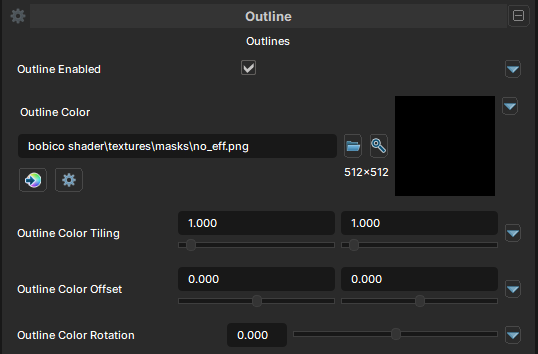
Outlines
Outlines Enabled
- UI Type : Toggle
Enables Outline feature. Allowing you to add outlines to make stylized stuff more alive.
Outline Color
- UI Type :
 Color Texture
 - Output format :
BC7 [RGBA]
Defines a Outline Color texture. You can use the main color as Outline Color and tint the outline to make fancier outlines that adapts to the main color. UV Settings and Color adjustments are available to use if needed.
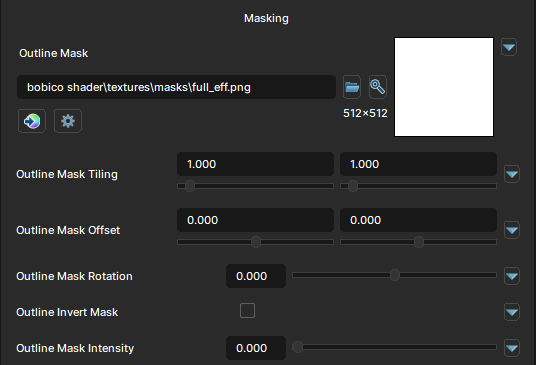
Outline Masking
Outline Mask
- UI Type : Mask Texture
- Output format :
AIT1N [R]
Defines a Outline Mask for masking outlines. You can make outlines appear in some areas of the material. Common usage on anime character to avoid outlines showing up on eyes and inside the mouth. UV Settings and Invert Mask settings are available to use if needed.
Outline Mask Intensity
- UI Type : Slider
Float- Range :
0.0 - 1.0
- Range :
Controls the intensity of the Outline Mask.
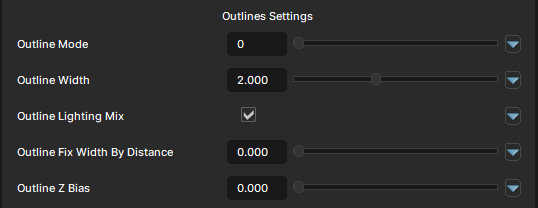
Outline Settings
Outline Mode
- UI Type : Slider
Int- Range :
0 - 1
- Range :
Selects the Outline mode.
| Number | Mode | Information |
|---|---|---|
| 0 | Normal | This mode does nothing special on the outlines. |
| 1 | Directional | This mode will use the direction/sun light and Outlines will be thicker on the light's direction. |
Outline Width
- UI Type : Slider
Float- Range :
0.0 - 5.0
- Range :
Controls how thick the outline is.
You should use a very low amount of value to avoid very thick outlines. Value between 0.1 - 0.5 is acceptable for most usage!
Outline Lighting Mix
- UI Type : Toggle
Enables Lighting adaption for Outlines. Enabling it to make outlines adapts to the lighting gently.
Outline Fix Width By Distance
- UI Type : Slider
Float- Range :
0.0 - 1.0
- Range :
Enables Fixed outline width by distance to keep outlines stable and keep its width even the camera is far away.
Outline Z-bias
- UI Type : Slider
Float- Range :
0.0 - 0.5
- Range :
Clips the Outlines to avoid Z-fighting. It can be also used to control the clipping of the outlines. Such as making outlines only show up on the edges. This slider is a bit intensive. So, it's adviced to use very small amount of value.
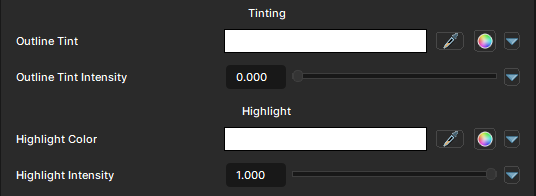
Outline Tinting
Outline Tint
- UI Type : Color
Tints the outline's color. Multiplies over Outline Color texture if a color texture used.
Outline Tint Intensity
- UI Type : Slider
Float- Range :
0.0 - 1.0
- Range :
Controls the intensity of Outline Tint.
Outline Highlight
Highlight Color
- UI Type : Color
Adds Highlight to the outlines that adapts to the view camera position.
Highlight Intensity
- UI Type : Slider
Float- Range :
0.0 - 1.0
- Range :
Controls the intensity of Outline Highlight.