Shading Modes
BoBiCo Shader offers many shading modes for your use. Shading modes control how shading is applied to your material. There are simple ones and complex ones. You can pick one below to read more about it.
If you see your shading broken, jaggy or blocky. Please see Using Expensive Tangents. Your model needs to have Expensive Tangents enabled for best results.
Select shading mode.
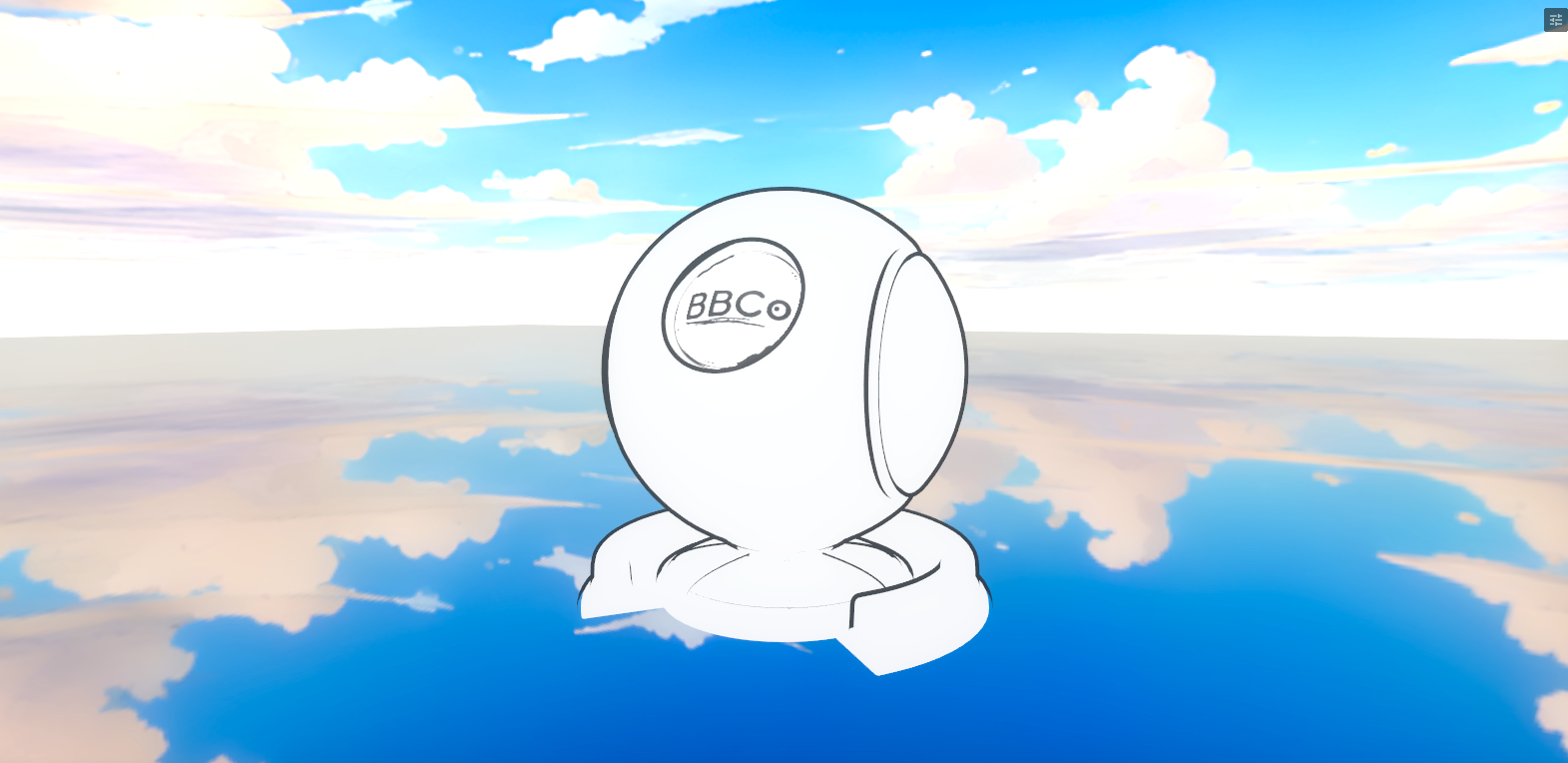
Flat Shading
Flat shading is a toon shading mode that uses the same lighting level as the default shading, except that it is fully flat. Flat shading mode does not expose any shading settings. This mode is for very fast use on your model without any complex shading styles.
Multi-layer Shading
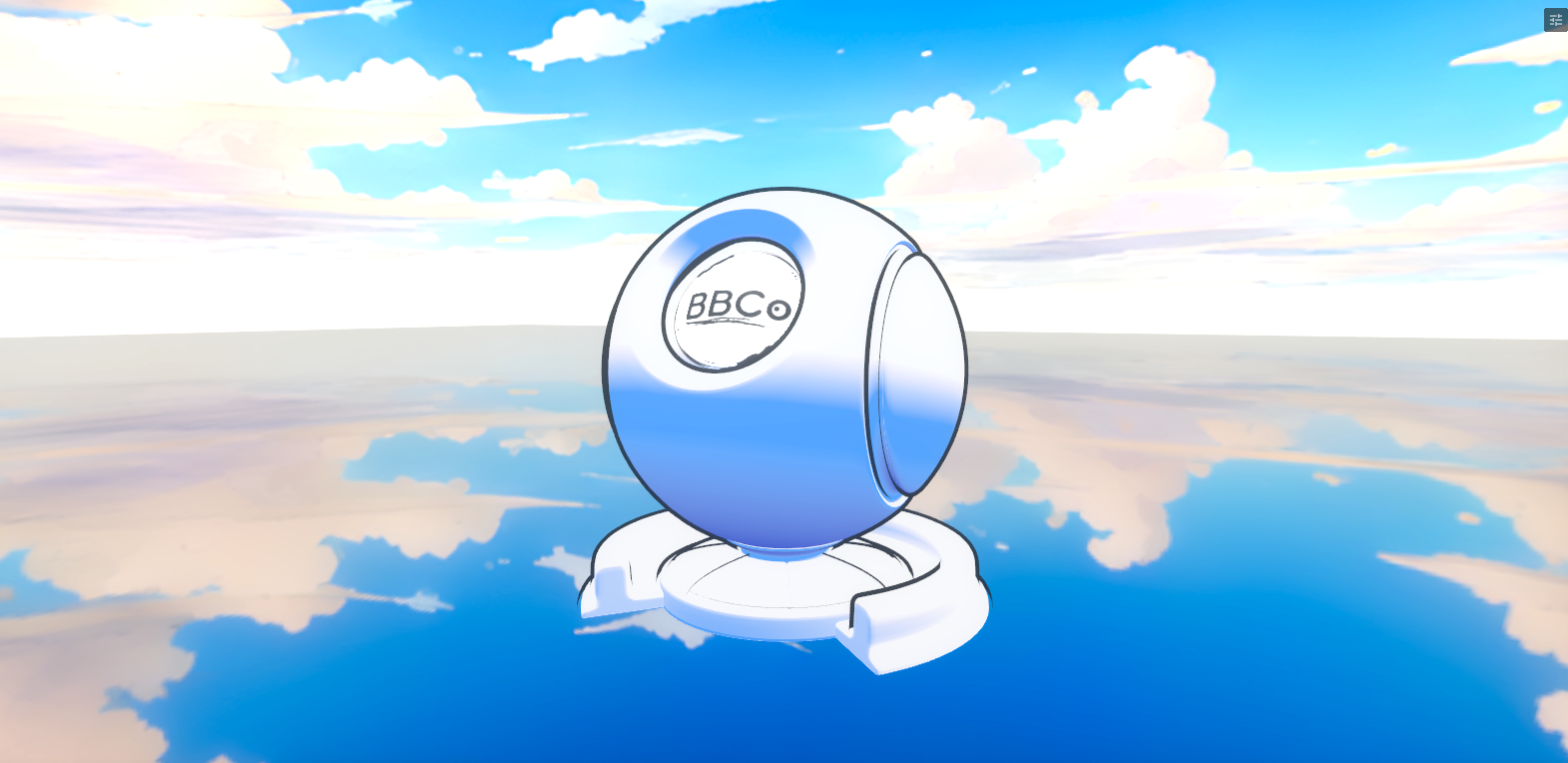
Multi-layer shading is a toon shading mode that uses triple-layer gradients with each layer blending correctly. This shading style is based off from LilToon shader.
This shading is best for users who want full control over the shading with robust toon shading that performs well in most conditions. You can use three shading colors and a border with adjustable settings. You can also use masks for complex usage. There's also SDF mask support for this mode.
Multi-layer Shading Options
Shadow Map
Shadow Map Options
Shadow Map
- UI Type :
 Mask Texture
- Output format :
BC7 [RGBA]
- Output format :
Defines a Shadow Map for shadow shading. Each color channels of the map applies to every layer and determine where the shadows should appear. UV settings are available if needed.
Shadow Map Type
- UI Type : Slider
Int- Range :
0 - 2
- Range :
Selects the shadow map type. Three different map types are available.
| Number | Mode | Information |
|---|---|---|
| 0 | Strength | Strength will determine where the shadows for each layers should appear in. |
| 1 | Flat | Flat will allow to customize the appearance while also determining where the shadows for each layers should appear in. |
| 2 | SDF | SDF (Signed Distance Field) is a complex shading style that defines how shadows should act based on the direction of light. It's for advanced usage. |
Strength Shadow Map
Shadow Map Invert
- UI Type :
 Checkbox
 Boolean
Inverts the shadow mask, resulting in the opposite effect of the mask.
Shadow Map Intensity
- UI Type : Slider
Float- Range :
0.0 - 1.0
- Range :
Controls the Shadow Map intensity.
Flat Shadow Map
Options below will not work unless you use Flat shadow map mode. They are still visible because Material Editor does not allow hiding them for a specific mode with runtime sliders.
Flat Shadow Map Area
- UI Type : Slider
Float- Range :
-2.0 - 2.0
- Range :
Controls the area of the Flat Shadow Map. This sets the border between the shaded and lit areas. Lower values make the shading cover less area, while higher values make the shading cover more area.
Flat Shadow Map Softness
- UI Type : Slider
Float- Range :
-2.0 - 2.0
- Range :
Controls the softness of the Flat Shadow Map. This can be used to adjust between cel-shaded toon shading and softer, more realistic shading. Lower values make the shading fully sharp, while higher values make the shading softer.
SDF Map
Option below will not work unless you use SDF shadow map mode. They are still visible because Material Editor does not allow hiding them for a specific mode with runtime sliders.
SDF Map Blend Y Direction
- UI Type : Slider
Float- Range :
0.0 - 2.0
- Range :
Controls how strongly the SDF shadow blends in the vertical direction of the texture. Lower values keep the shadow tighter and more rigid. Higher values spread the shadow more smoothly up and down.
Shadow Layers
1st Shadow Layer
Shadow Color
- UI Type : Color
Defines the color of the Main Shadow layer, which is the 1st Layer. This layer must be used before the other layers; otherwise, the other layers will not take effect.
Shadow Intensity
- UI Type : Slider
Float- Range :
0.0 - 1.0
- Range :
Controls the intensity of the Main Shadow layer. Lower values result in minimal shading, while higher values result in more intense shading.
Shadow Area
- UI Type : Slider
Float- Range :
0.0 - 1.0
- Range :
Controls the area of the Main Shadow layer. This sets the border between the shaded and lit areas. Lower values make the shading cover less area, while higher values make the shading cover more area.
Shadow Softness
- UI Type : Slider
Float- Range :
0.0 - 1.0
- Range :
Controls the hardness and smoothness of the Main Shadow layer. This can be used to adjust between cel-shaded toon shading and softer, more realistic shading. Lower values make the shading fully sharp, while higher values make the shading softer.
2nd Shadow Layer
Shadow 2nd Color
- UI Type : Color
Defines the color of the 2nd layer shadow. The 1st layer must be used first; otherwise, this layer will not take effect.
Shadow 2nd Intensity
- UI Type : Slider
Float- Range :
0.0 - 1.0
- Range :
Controls the intensity of the 2nd layer. Lower values result in minimal shading, while higher values result in more intense shading.
Shadow 2nd Area
- UI Type : Slider
Float- Range :
0.0 - 1.0
- Range :
Controls the area of the 2nd layer. This sets the border between the shaded and lit areas. Lower values make the shading cover less area, while higher values make the shading cover more area.
Shadow 2nd Softness
- UI Type : Slider
Float- Range :
0.0 - 1.0
- Range :
Controls the hardness and smoothness of the 2nd layer. This can be used to adjust between cel-shaded toon shading and softer, more realistic shading. Lower values make the shading fully sharp, while higher values make the shading softer.
3rd Shadow Layer
Shadow 3rd Color
- UI Type : Color
Defines the color of the 3rd layer shadow. The 2nd layer must be used first; otherwise, this layer will not take effect.
Shadow 3rd Intensity
- UI Type : Slider
Float- Range :
0.0 - 1.0
- Range :
Controls the intensity of the 3rd layer. Lower values result in minimal shading, while higher values result in more intense shading.
Shadow 3rd Area
- UI Type : Slider
Float- Range :
0.0 - 1.0
- Range :
Controls the area of the 3rd layer. This sets the border between the shaded and lit areas. Lower values make the shading cover less area, while higher values make the shading cover more area.
Shadow 3rd Softness
- UI Type : Slider
Float- Range :
0.0 - 1.0
- Range :
Controls the hardness and smoothness of the 3rd layer. This can be used to adjust between cel-shaded toon shading and softer, more realistic shading. Lower values make the shading fully sharp, while higher values make the shading softer.
Shadow Edge
Shadow Edge Options
Shadow Edge Color
- UI Type : Color
Defines the color of the edge shadow. This layer applies an extra shadow color to the edge of the main layer.
Shadow Edge Range
- UI Type : Slider
Float- Range :
0.0 - 1.0
- Range :
Controls the range of the edge shadow. This can be used to give the edge shadow more area. Lower values make the shading cover less area from the edge, while higher values make the shading cover more area from the edge.
Shadow Blur & AO
Shadow Blur
Shadow Blur Mask
- UI Type : Mask Texture
- Output format :
BC7 [RGBA]
- Output format :
Defines a Blur Mask texture. Each RGB color channel is used for every shadow layers. This mask defines which areas should be blurred for each layer.
Shadow Blur Mask Intensity
- UI Type : Slider
Float- Range :
0.0 - 1.0
- Range :
Controls the Blur Mask intensity.
Shadow AO
Use Shadow AO Mask
- UI Type : Checkbox
Boolean
Enables the use of an AO Mask for multi-layer shading.
Shadow AO Mask
- UI Type : Mask Texture
- Output format :
BC7 [RGBA]
- Output format :
Defines an Shadow AO Mask texture. Each RGB color channel is used for every shadow layers. This mask defines which areas should have AO for each layer.
Shadow AO Mask Invert
- UI Type : Checkbox
Boolean
Inverts the AO mask, resulting in the opposite effect of the mask.
Shadow AO Ignore Border Properties
- UI Type : Checkbox
Boolean
When enabled, the AO mask will ignore the properties set in each layer's Shadow Area.
Shadow AO Mask 1st Min
- UI Type : Slider
Float- Range :
-0.01 - 1.0
- Range :
Controls the minimum amount of the Shadow Border to apply to the Main Shadow Layer.
Shadow AO Mask 1st Max
- UI Type : Slider
Float- Range :
-0.01 - 1.0
- Range :
Controls the maximum amount of the Shadow Border to apply to the Main Shadow Layer.
Shadow AO Mask 2nd Min
- UI Type : Slider
Float- Range :
-0.01 - 1.0
- Range :
Controls the minimum amount of the Shadow Border to apply to the Second Shadow Layer.
Shadow AO Mask 2nd Max
- UI Type : Slider
Float- Range :
-0.01 - 1.0
- Range :
Controls the maximum amount of the Shadow Border to apply to the Second Shadow Layer.
Shadow AO Mask 3rd Min
- UI Type : Slider
Float- Range :
-0.01 - 1.0
- Range :
Controls the minimum amount of the Shadow Border to apply to the Third Shading Layer.
Shadow AO Mask 3rd Max
- UI Type : Slider
Float- Range :
-0.01 - 1.0
- Range :
Controls the maximum amount of the Shadow Border to apply to the Third Shading Layer.
Shadow Settings
Shadow Settings
Shadow Environment Strength
- UI Type : Slider
Float- Range :
0.0 - 1.0
- Range :
Controls how much environmental lighting affects the shading color.
Shadow Contrast
- UI Type : Slider
Float- Range :
0.0 - 1.0
- Range :
Controls how much contrast the shading color should have. It makes the shadow colors more vibrant by multiplying the Main Color further.
TextureRamp
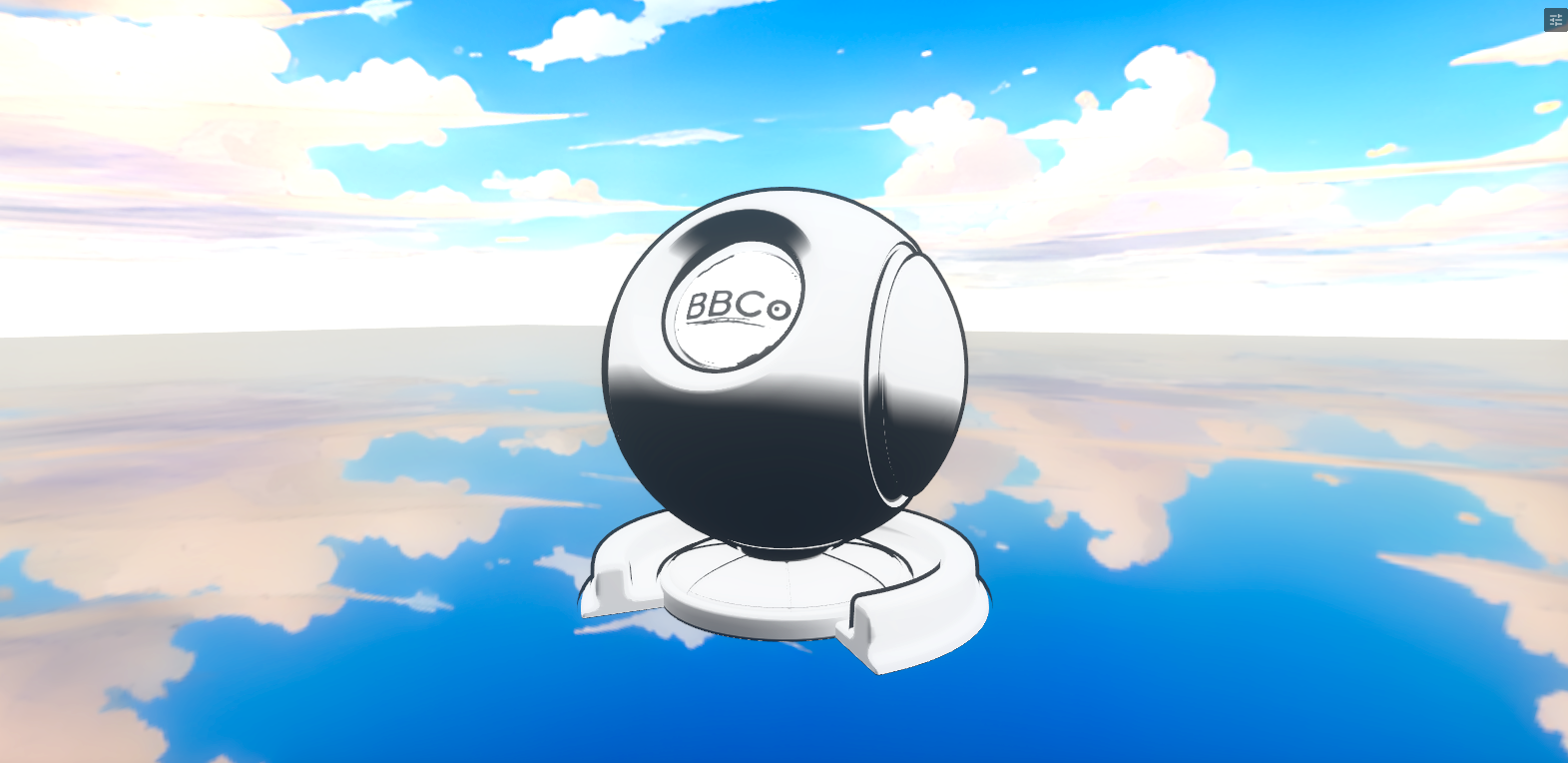
TextureRamp shading is a toon shading mode that uses gradient ramps for shading. Our TextureRamp shading also supports vertical-map ramp textures. This means ToonRamps from MMD (MikuMikuDance) are supported. This mode is useful for creating cartoon lighting without needing a complex setup.
TextureRamp Shading Options
TextureRamp
Ramp Texture
- UI Type : Color Texture
- Output format :
BC7 [RGBA]
- Output format :
Defines a Ramp texture that controls the overall shading. Most ramp textures are mapped from Left-ight. The left-most area is the Darkest side, while the right-most side is the Lightest side. You can also use Bottom-Top ramp textures if you are using MMD materials. But you must enable Ramp Vertical for them to work properly.
Ramp Intensity
- UI Type : Slider
Float- Range :
0.0 - 1.0
- Range :
Controls the intensity of the Ramp Shading.
Ramp Offset
- UI Type : Slider
Float- Range :
-1.0 - 1.0
- Range :
Controls the offset of the Ramp Shading. -1.0 is the left side (darkest), while 1.0 is the right side (lightest).
Ramp Tint
- UI Type : Color
Tints the Ramp Shading.
2nd TextureRamp is available if Enable Extra Layers is enabled in the sidebar.
2nd TextureRamp
Ramp 2nd Texture
- UI Type : Color Texture
- Output format :
BC7 [RGBA]
- Output format :
Defines a 2nd TextureRamp texture that controls the second shading ramp.
Ramp 2nd Intensity
- UI Type : Slider
Float- Range :
0.0 - 1.0
- Range :
Controls the intensity of the 2nd Ramp Shading.
Ramp 2nd Offset
- UI Type : Slider
Float- Range :
-1.0 - 1.0
- Range :
Controls the offset of the 2nd Ramp Shading. -1.0 is the left side (darkest), while 1.0 is the right side (lightest).
Ramp 2nd Tint
- UI Type : Color
Tints the 2nd Ramp Shading.
Shadow Tint
Shadow Tint
- UI Type : Color
Tints the shadow color, which is the darker side when lit. It will be mixed with the ramp color and ambient color.
Shadow Strength
- UI Type : Slider
Float- Range :
0.0 - 1.0
- Range :
Controls the intensity of Shadow Tint.
Ramp Settings
Ramp UV Mode
- UI Type : Slider
Int- Range :
0 - 1
- Range :
Selects which UV channel to use for the Ramp Shading. UV0 and UV1 are available to use.
Ramp Vertical
- UI Type : Checkbox
Boolean
Enables Vertical mapping for the Ramp Texture. It maps from Bottom-Top instead of Left-Right, which is how MMD ramp textures are supposed to use.
Ramp Invert
- UI Type : Checkbox
Boolean
Enables the opposite mapping for Ramp Texture from Left-Right to Right-Left. This also maps from Bottom-Top to Top-Bottom for Vertical Mapping if Ramp Vertical is used.
ShadeMap
Shademap is a toon shading mode that uses shading maps for shading. You can use your own shademaps or use the main color with a specific shadow tint over it. Umamusume models also use shading maps for their shading, which can be useful if you're using the shader for those models.
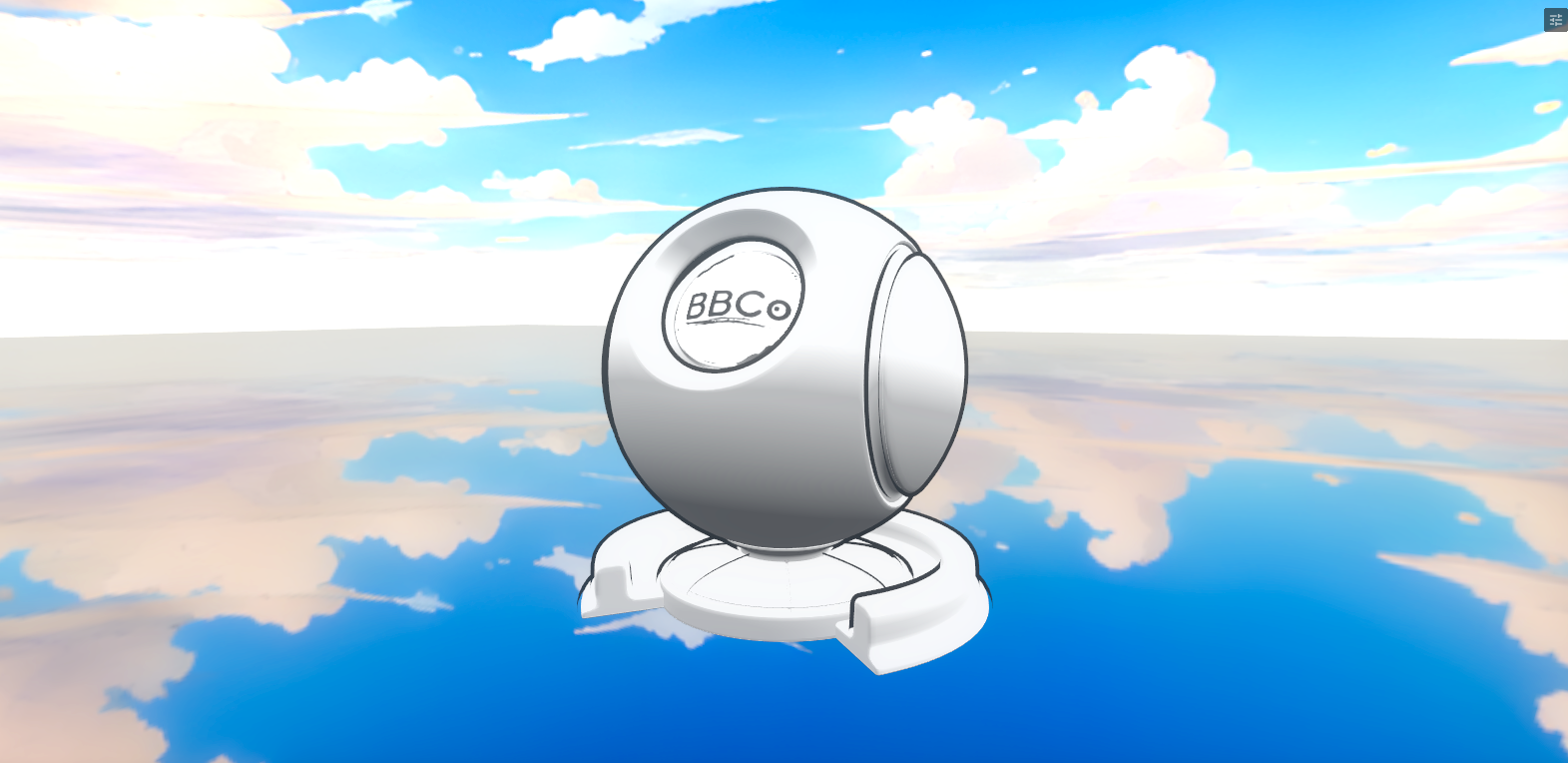
Shademap Shading Options
Shademap Settings
Shademap
- UI Type : Color Texture
- Output format :
BC7 [RGBA]
- Output format :
Defines a Shading map for the Main Shading. You can use the Main Color as the 1st shademap and tint it to a slightly darker color using Shademap Tint for a good shading result.
Shademap Tint
- UI Type : Color
Tints the Main Shading. You can use Use Main Color as 1st Shademap to use the Main Color and tint it if you do not have a Shading map.
Use Main Color as 1st Shademap
- UI Type : Checkbox
Boolean
Uses the Main Color as Shademap. You can use this if you do not have a shading map and want to tint it.
Shademap Intensity
- UI Type : Slider
Float- Range :
0.0 - 1.0
- Range :
Controls the intensity of Main Shading.
Shademap Area
- UI Type : Slider
Float- Range :
0.0 - 1.0
- Range :
Controls the area of the Main Shading. This sets the border between the shaded and lit areas. Lower values make the shading cover less area, while higher values make the shading cover more area.
Shademap Softness
- UI Type : Slider
Float- Range :
0.0 - 1.0
- Range :
Controls the hardness and smoothness of the Main Shading. This can be used to adjust between cel-shaded toon shading and softer, more realistic shading. Lower values make the shading fully sharp, while higher values make the shading softer.
*Second Shademap is available if Enable Extra Layers is enabled in the sidebar.
Second Shademap Settings
Second Shademap
- UI Type : Color Texture
- Output format :
BC7 [RGBA]
- Output format :
Defines the 2nd Shading Map for the 2nd shading.
Second Shademap Tint
- UI Type : Color
Tints the 2nd Shading.
Use 1st as 2nd Shademap
- UI Type : Checkbox
Boolean
Uses Shademap as Second Shademap.
Second Shademap Intensity
- UI Type : Slider
Float- Range :
0.0 - 1.0
- Range :
Controls the intensity of 2nd Shading.
Second Shademap Area
- UI Type : Slider
Float- Range :
0.0 - 1.0
- Range :
Controls the area of 2nd Shading.
Second Shademap Softness
- UI Type : Slider
Float- Range :
0.0 - 1.0
- Range :
Controls the hardness and smoothness of 2nd Shading.
Shademap Settings
Shademap Blend Mode
- UI Type : Slider
Int- Range :
0 - 1
- Range :
Defines how the shading should be blended with the main color.
Replace is the default mode and replaces the shading over the main color, while Multiply multiplies over the main color.
Shademap UV Mode
- UI Type : Slider
Int- Range :
0 - 1
- Range :
Defines which UV channel to use for the Shademap Shading. UV0 & UV1 are available to use.
Shademap Contrast
- UI Type : Slider
Float- Range :
0.0 - 1.0
- Range :
Controls how much contrast the shading color should have. It makes the shadow colors more vibrant by multiplying the Main Color further.
Realistic
Realistic is a physically-based shading mode that's useful for anything that is not Cartoony or Stylized. It behaves similar to the lighting found in the Unity Standard shader. Realistic Shading will cast Self-Shadows by default and shading can be controlled from Realistic Shading category and PBR Rendering.
Separate AO and Shadowmap support are also added to PBR Rendering with this mode.
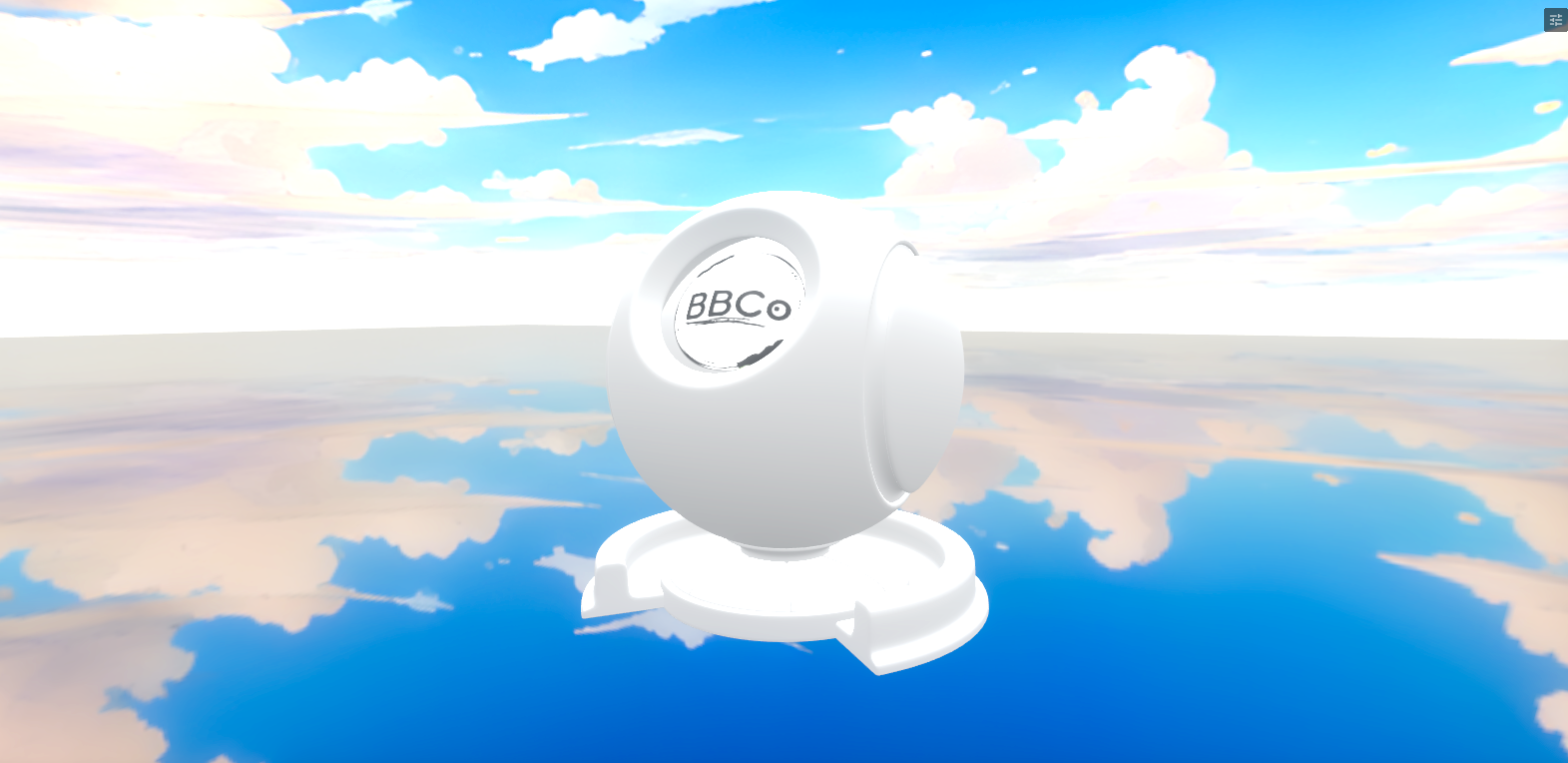
Realistic Shading Options
Realistic Shading Settings
Shading Tint
- UI Type : Color
Tints the Shading.
Shading Light Side Tint
- UI Type : Color
Tints the Lit side (Bright Side).
Shading Area
- UI Type : Slider
Float- Range : 0.0 - 1.0
Controls the area of the Shading. This sets the border between the shaded and lit areas. Lower values make the shading cover less area, while higher values make the shading cover more area.
Self Shadowing Enabled
- UI Type : Toggle
Enables Self-Shadowing. This will be enabled by default.
Self Shadowing Intensity
- UI Type : Slider
Float- Range : 0.0 - 1.0
Controls the intensity of Self-Shadowing.
Fur
Fur is a mode for rendering fluffy ears, tails, or anything else fluffy. Outlines and some effects are not visible or unavailable on Fur due to performance issues. For shading, Multi-layer Shading is the only shadow shading available for Fur.
You can render Fur in three different render modes: Opaque, Cutoff, and Translucent. The first two render the Fur as expected, while Translucent uses Alpha-To-Coverage (A2C) with some workarounds to make it look premium while being a bit more expensive.
This mode is a very high-load feature because it uses actual geometry! You should only use it if you have a proper setup, such as the required map textures. Using a length mask is recommended so you only render Fur where it is needed!
Fur Options
Fur Textures
Fur Map
- UI Type : Mask
- Output format :
ATI1N [R]
- Output format :
Defines a Fur Map for determining where to draw Fur Geometry and how long the Fur is.
We highly recommend you to have one to avoid unnecessary usage!
Fur Normal Map
- UI Type : Map
- Output format :
BC7 [RGBA]
- Output format :
Defines a Normal Map for Fur and can be used as the direction of the Fur.
Fur Noise Map
- UI Type : Mask
- Output format :
ATI1N [R]
- Output format :
Defines a Noise Map for Fur Generation. You should tile the Noise Map to a higher value for more Fur.
We already tile the Noise Map to 10x10 by default, which gives a good result and adds a good amount of Fur. You can readjust it if you want to reduce the amount of Fur or increase it for more Fur.
Fur Alpha Mask
- UI Type : Mask
- Output format :
ATI1N [R]
- Output format :
Defines an Alpha Mask for Fur Transparency. Furs in Transparent are already transparent by default even without an alpha mask. But you can make some parts of the Fur more transparent while the rest stays the same with this.
Fur Alpha Mask will only show up in Cutoff or Transparent rendering mode.
Fur Settings
Fur Layer Counts
- UI Type : Slider
Int- Range :
0 - 3
- Range :
Controls the number of Fur Layers to draw. This setting is the another most expensive, as it controls how many layers of Fur should be drawn.
We recommend using 2 layers most of the time.
Fur Normal Intensity
- UI Type : Slider
Int- Range :
-5 - 5
- Range :
Controls the intensity of the Fur Normal Map. Changing this causes the Fur to use the direction from the specified Fur Normal Map.
Fur Direction
- UI Type : Float3 XYZ
- Range :
-1, -1, -1 - 1, 1, 1
- Range :
Controls the direction of the Fur by XYZ axes. The Z axis should usually be set to 1 to avoid unusual behavior. You can make the Fur point in a specific direction by using this.
Fur Length
- UI Type : Slider
Float- Range :
0 - 1
- Range :
Controls the length of the Fur. This slider is expensive, so you should only use very low values such as 0.02, 0.05, and so on.
This slider makes the Fur longer and fills more Fur pixels on the screen, which will drain performance a lot. As advised, you should only use very low values.
Fur Gravity
- UI Type : Slider
Float- Range :
0 - 1
- Range :
Controls the gravity simulation on the Fur. It makes the Fur point downward as if gravity is pushing it down.
Fur Randomize
- UI Type : Slider
Float- Range :
0 - 1
- Range :
Randomizes the length of the Fur. This lets you create more varied Fur.
Fur Visibility
- UI Type : Slider
Float- Range :
0 - 1
- Range :
Controls the visibility of the Fur. Lower values make the Fur less visible and softer, while higher values make the Fur harsher and looks denser.
Fur Visibility will only show up in Cutoff or Transparent rendering mode.
Fur AO
- UI Type : Slider
Float- Range :
0 - 1
- Range :
Adds Ambient Occlusion (AO) to the Furs.
Fur Rim Lighting Settings
Fur Rim Enabled
- UI Type : Checkbox
Boolean
Enables Fur Rim Lighting. This will be used by default and can improve the look of the Fur a lot.
Fur Rim Color
- UI Type : Color
Tints the color of Fur Rim Lighting.
Fur Rim Intensity
- UI Type : Slider
Float- Range :
0 - 1
- Range :
Controls the intensity of Fur Rim Lighting.
Fur Rim Tip Area
- UI Type : Slider
Float- Range :
0 - 1
- Range :
Controls how much Fur Rim Lighting should affect the tips and strands. Lower values keep the effect on the tips, while higher values make the effect reach farther into the strands from the tip.
Fur Rim Fresnel
- UI Type : Slider
Float- Range :
0 - 1
- Range :
Controls the edge fresnel of the Fur Rim Lighting. Lower values make the effect appear fully, while higher values make the effect show up only at the edges.
Fur Rim Lighting Mix
- UI Type : Slider
Float- Range :
0 - 1
- Range :
Makes the Fur Rim Lighting adapt to the scene lighting.