2nd Color
2nd Color section is for applying an extra detail texture over the main color texture. You can use it as a detail texture or as a decal texture for customzation. Such as stickers, logos, tattoos and more. We only support one extra slot for now as we're limited to 32 texture binding slots.
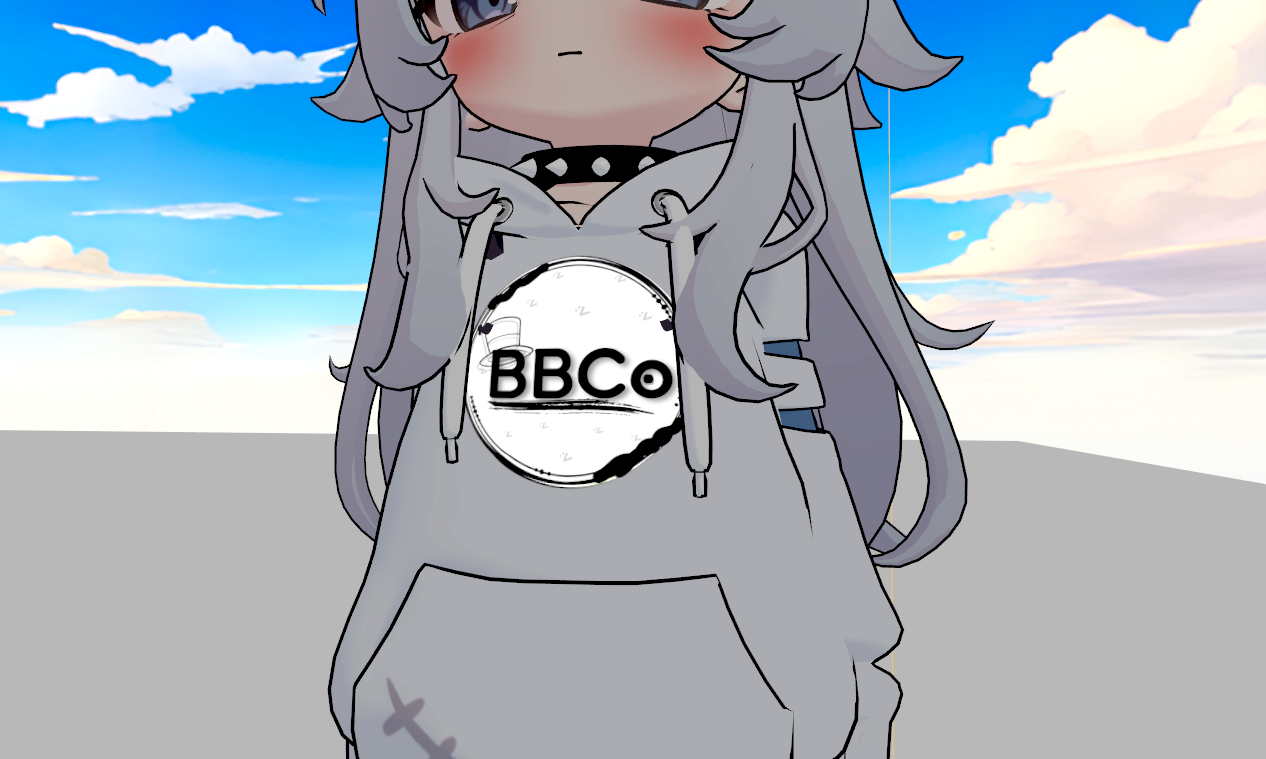
2nd Color won't show up by default. You'll need to tick Enable Extra Layers in the side bar to compile them and use it. We made that a toggle to avoid performance reasons with extra draw calls in materials that don't need extra layers.
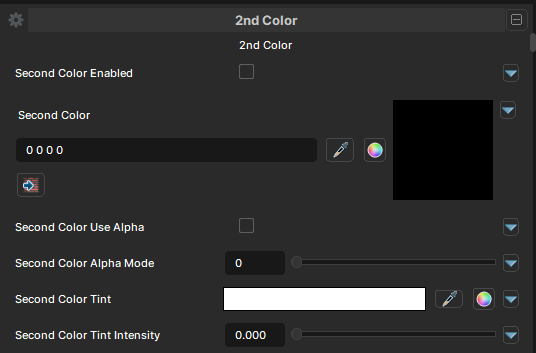
2nd Color
Second Color Enabled
- UI Type : Toggle
Enables the 2nd Color feature.
Second Color
- UI Type :
 Color Texture
- Output format :
BC7 [RGBA]
- Output format :
Defines a 2nd Color texture to use as detailing over main color. UV Settings, UV Animation and Color Adjustments settings are available to use if needed.
Second Color Tint
- UI Type : Color
Tints the 2nd Color with a specified color.
Second Color Tint Intensity
- UI Type : Slider
Float- Range :
0.0 - 1.0
- Range :
Controls the intensity of Second Color Tint.
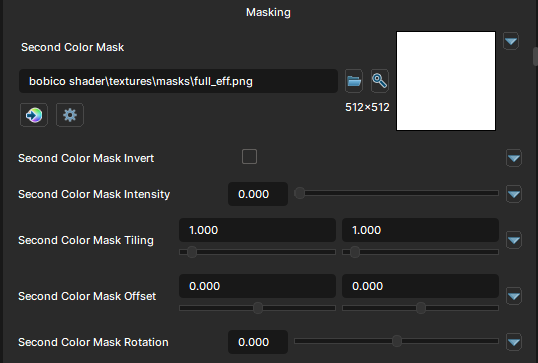
2nd Color Masking
Second Color Mask
- UI Type : Mask Texture
- Output format :
AIT1N [R]
Defines a 2nd Color Mask for masking 2nd Color. You can use this to mask 2nd Color to a specific area of the Main Color. UV Settings and Invert Mask settings are available to use when needed.
Second Color Mask Intensity
- UI Type : Slider
Float- Range :
0.0 - 1.0
- Range :
Controls the intensity of 2nd Color Mask.
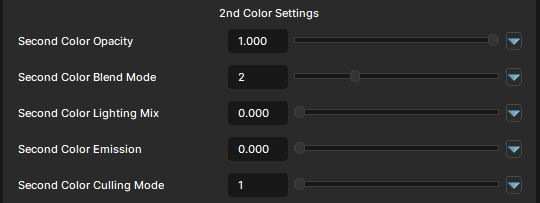
2nd Color Settings
Second Color Opacity
- UI Type : Slider
Float- Range :
0.0 - 1.0
- Range :
Controls how visible 2nd Color should be.
Second Color Blend Mode
- UI Type : Slider
Int- Range :
0 - 7
- Range :
Controls the blending mode of 2nd Color to blend with the Main Color. See Blend Modes.
Second Color Alpha Mode
- UI Type : Slider
Int- Range :
0 - 4
- Range :
| Number | Mode | Information |
|---|---|---|
| 0 | None | No alpha contribution from 2nd Color. |
| 1 | Replace | Uses the 2nd Color alpha as-is. This mode should be used for almost everything. |
| 2 | Multiply | Applies the 2nd Color alpha multiplicatively to its contribution. |
| 3 | Add | Adds the 2nd Color alpha to its contribution. |
| 4 | Subtract | Invert of Add. It subtracts the 2nd Color alpha from its contribution. |
Second Color Lighting Mix
- UI Type : Slider
Float- Range :
0.0 - 1.0
- Range :
Controls the Lighting Adaption of 2nd Color. A value of 0 will make it stay glow in dark areas while 1 will make it adapt to the lighting gently.
Second Color Emission
- UI Type : Slider
Float- Range :
0.0 - 5.0
- Range :
Controls the Emission intensity of 2nd Color.
A value of 1 can be enough to make the color glow. More than 1 can make the emission make more glow and give Bloom effect if Bloom post-processing is used.
Second Color Culling Mode
- UI Type : Slider
Int- Range :
0 - 3
- Range :
Controls the Culling Mode of 2nd Color. See Culling Mode.
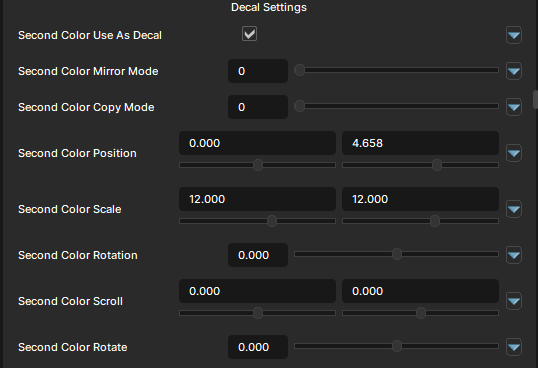
2nd Color Decal
Use As Decal
- UI Type : Toggle
Enables the Decal usage for 2nd Color. Which will allow you to use the controls from Decal Settings.
When placing as a decal. You should use Show Material On Plane view mode in the preview of Material Editor for placing the decal in the best way without guessing!
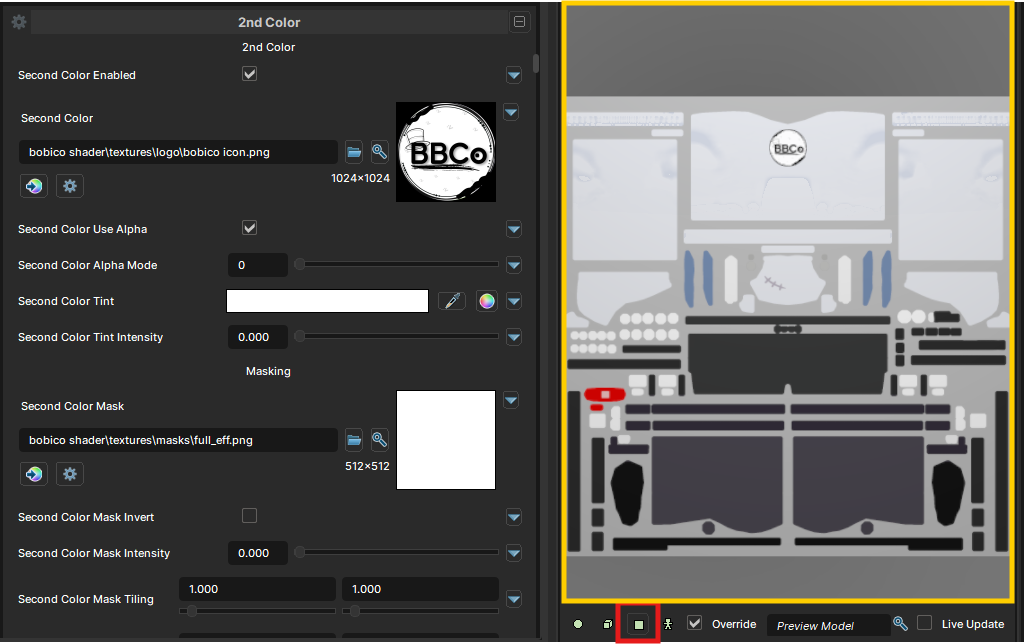
We have plan to make our own editor for our shader which will feature a decal tool for better decal placement. But, not now.
Second Color Mirror Mode
- UI Type : Slider
Int- Range :
0 - 4
- Range :
Controls the Mirroring of 2nd Color (Decal). This will allows you to place the decal on Meshes with overlapping UVs. You can use this to put Decals on just one side, or flip them on one side. This is only used when your decal don't show up in the place it should be!
| Number | Mode | Information |
|---|---|---|
| 0 | Normal | Nothing changes.. |
| 1 | Flip | Flips the decal to the other side of the overlapping UV space. |
| 2 | Left Only | Shows the decal only on the left half of the model UV space. |
| 3 | Right Only | Shows the decal only on the right half of the model UV space. |
| 4 | Flip Right Only | Shows only the right-side region, but flips the decal horizontally. |
Second Color Copy Mode
- UI Type : Slider
Int- Range :
0 - 2
- Range :
Controls the Copy Mode of 2nd Color (Decal). This will put the decal to put on both sides of symmetrized UV space.
| Number | Mode | Information |
|---|---|---|
| 0 | Normal | Nothing changes.. |
| 1 | Symmetry | This makes both left and right sides of the decal sample from the same half, useful for symmetrical decals. |
| 2 | Flip | This is more conditional than Mirror Mode’s global Flip, so it helps copy one side’s decal layout across the mirrored side. |
UV Settings from Decal Settings below are used for Decal only. Main UV Settings and UV Animations are for Main 2nd Color.
Second Color Position
- UI Type : Float2 XY
- Range :
0.0 - 20.0
- Range :
Controls the Positioning of the decal. X can be used for moving left-right and Y can be used for moving up-down.
Second Color Scale
- UI Type : Float2 XY
- Range :
0.0 - 20.0
- Range :
Controls the Scaling of the decal. X can be used for scaling left-right and Y can be used for scaling up-down.
Second Color Rotation
- UI Type : Float2 XY
- Range :
-180.0 - 180.0
- Range :
Controls the Rotation of the decal. X can be used for rotating left-right and Y can be used for rotating up-down.
Second Color Scroll
- UI Type : Float2 XY
- Range :
-5.0 - 5.0
- Range :
Scroll moves the placement of the decal texture by moving the UV only, creating the illusion of movement without moving the decal itself. X and Y value are available for left-to-right or down-to-up.
Second Color Rotate
- UI Type : Float2 XY
- Range :
-1.0 - 1.0
- Range :
Rotate rotates the placement of the decal texture by rotating the UV only. A value less than 0.0 will start rotating the decal to left. More than 0.0 will rotate the decal to right. More than 1.0 will speed up the rotate animation.