Alpha Settings
The Alpha Settings is for controlling the alpha of the main color. You can make full-transparency or cutoff pixels you don't need for stuff like holes. There are also functions that can make transparency fancier or make transparency render cheaper while being acceptable.
Unlike Complex or engine-side shaders. Our shader will directly read the alpha channel of the texture and mask it if an alpha channel is available in the textures. So, if your texture don't come with a grayscale mask for alpha while already having alpha in the texture. Shader will directly use it for alpha effect.
Cutoff or Transparent rendering mode must be selected for this section to show up in the editor!
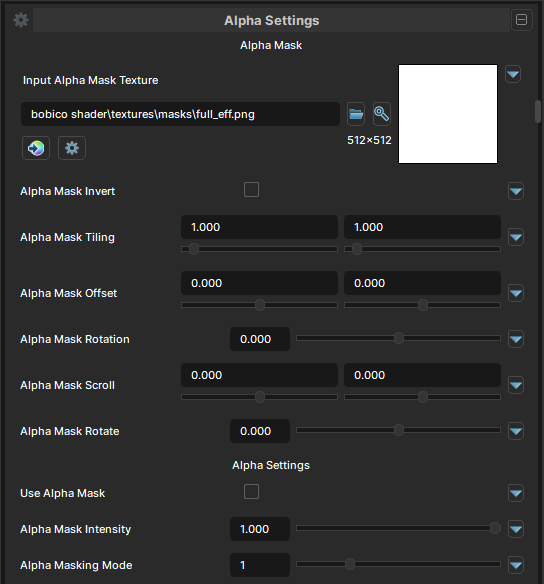
Alpha Mask
Alpha Mask Texture
- UI Type :
 Mask Texture
 - Output format :
AIT1N [R]
Defines an Alpha mask for applying the alpha effect. The mask should be in Grayscale (B&W) and shader will only read the R (Red) channel. UV Settings and Invert Mask settings are available to use if needed.
Alpha Settings
Use Alpha Mask
- UI Type : Toggle
Enables Alpha Masking. This will allow you to use the alpha mask if needed.
Alpha Masking Mode
- UI Type : Slider
Int- Range :
1 - 4
- Range :
| Number | Mode | Information |
|---|---|---|
| 1 | Replace | Default masking mode. Keeps the material from becoming more opaque than its original alpha. It only cuts alpha down where the mask is darker. |
| 2 | Multiply | Multiplies the material alpha by the mask. White keeps alpha unchanged, black removes it, gray partially fades it. Similar to Replace, but mathematically more direct and usually stronger on semi-transparent areas. |
| 3 | Add | Adds the mask value into alpha. Brighter mask areas make the material more opaque. Useful if the base texture alpha is too weak and you want a mask to restore or boost visibility. |
| 4 | Subtract | Subtracts the mask value from alpha. Brighter mask areas remove opacity, darker areas leave it alone. Useful for inverse-style fade/cutout effects, like holes where the mask is white. |
Alpha Intensity
- UI Type : Slider
Float- Range :
0.0 - 1.0
- Range :
Controls the intensity of alpha effect. By default, it'll control the intensity of main color's alpha. If a mask is used, It'll control the mask's intensity instead.
Alpha Cutoff
- UI Type : Slider
Float- Range :
0.0 - 1.0
- Range :
Controls the intensity of cutoff. decides which pixel from alpha should be rendered or not. Only shows up when Cutoff rendering mode is selected.
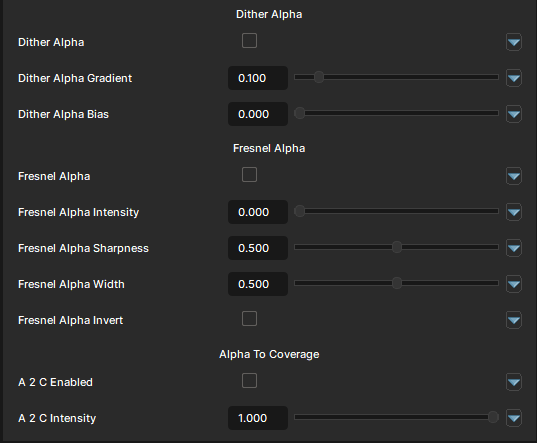
Dither Alpha
Dither alpha helps with smoothing out the transparency by creating a pattern of noise to smooth out the transition. Cutoff mode is recommanded to use along with it.
Dither Alpha
- UI Type : Toggle
Enables the Dithering Alpha function.
Dither Alpha Gradient
- UI Type : Slider
Float- Range :
0.0 - 1.0
- Range :
Controls the area of where dithering should be applied. More value will apply more dithering furthur more.
Dither Alpha Bias
- UI Type : Slider
Float- Range :
0.0 - 1.0
- Range :
Controls the bias of the dithering alpha to apply dithering over.
Fresel Alpha
Fresnel Alpha uses the camera's angle to view the alpha effect as an fresnel effect. You can use this function for objects that are opaque in edge areas than middle. It's like Rim Lighting but for Alpha.
Fresnel Alpha
- UI Type : Toggle
Enables the Fresnel Alpha function.
Fresnel Alpha Intensity
- UI Type : Slider
Float- Range :
0.0 - 1.0
- Range :
Controls the intensity of Fresnel Alpha effect.
Fresnel Alpha Sharpness
- UI Type : Slider
Float- Range :
0.0 - 1.0
- Range :
Controls the sharpness of transition between full effect and no effect area.
Fresnel Alpha width
- UI Type : Slider
Float- Range :
0.0 - 1.0
- Range :
Controls the wideness of the effect.
Fresnel Alpha Invert
- UI Type : Toggle
Inverts the effect of Fresnel Alpha.
Alpha To coverage
Alpha To Coverage converts an object's transparency (alpha value) into an anti-aliased sub-pixel mask using Multi-Sample Anti-Aliasing (MSAA). You should use 8x MSAA for the best results.
A2C Enabled
- UI Type : Toggle
Enables Alpha To coverage.
A2C Intensity
- UI Type : Slider
Float- Range :
0.0 - 1.0
- Range :
Controls the intensity of Alpha To coverage.