Color Adjust
The Color Adjust section controls the color adjustments and tinting of the Main Color without having to edit externally. This function can behave differently depending on Color Space mode and Hue Mode. OKLab is used by default for best results. HSV is also available.
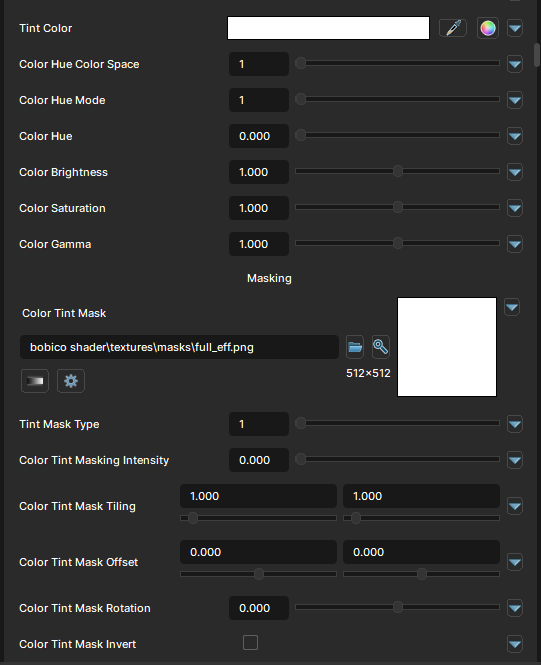
Color adjustments
Color Adjust Enabled
- UI Type : Toggle
Enables the Color Adjust feature.
Tint Color
- UI Type : Color
Tints the main color with a specified color.
Hue Color Space
- UI Type : Slider
Int- Range :
1 - 2
- Range :
Selects a color space mode for color adjusting. OKLab is set by default.
| Number | Mode | Information |
|---|---|---|
| 1 | OKLab | OKLab is a modern color space designed to behave more like human vision. Color adjustments in OKLab appear smoother, more natural, more visually balanced. |
| 2 | HSV | HSV is simple and fast. HSV can sometimes oversaturate colors, shift brightness unexpectedly or create unnatural gradients. |
Hue Mode
- UI Type : Slider
Int- Range :
1 - 2
- Range :
| Number | Mode | Information |
|---|---|---|
| 1 | Shift | Tints the Main Color based on the existing color by blending correctly. |
| 2 | Replace | Directly applies the hue into Main Color as an override. |
Color Hue
- UI Type : Slider
Float- Range :
0.0 - 1.0
- Range :
Shift the Main Color around on the hue circle. As the value is circular, it'll give you the same effect at 0 and 1.
Color Hue Speed
- UI Type : Slider
Float- Range :
0.0 - 5.0
- Range :
Shift the Main Color around on the hue circle by its own. It can be used for all-time color changing effects.
A value of 1.0 will shift the full hue circle in 20 Seconds.
Color Brightness
- UI Type : Slider
Float- Range :
0.0 - 2.0
- Range :
Controls the brightness of the Main Color.
Color Saturation
- UI Type : Slider
Float- Range :
0.0 - 2.0
- Range :
Controls the saturation of the Main Color.
A value of 0 makes the color fully desaturated while 2 makes the color more saturated.
Color Gamma
- UI Type : Slider
Float- Range :
0.0 - 2.0
- Range :
Controls the brightness of Main color's mid-tone colors without significantly affecting pure black or pure white areas. Lower values are more lighter and higher values are more bolder.
Masking
Color Tint Mask
- UI Type :
 Color Mask Texture
 - Output format :
BC7 [RGBA]
Defines a tint mask for color adjusting. This mask uses RGBA and each color channel response to each color adjust settings.
R (Red) channel for Hue, G (Green) channel for Brightness, B (Blue) channel for Saturation and A (Alpha) channel for Gamma. This allows more complex usage for advanced usage. Generic tint mask can be also used as usual. UV Settings and Invert Mask is available to use if needed.
Tint Mask Type
- UI Type : Slider
Int- Range :
1 - 3
- Range :
Selects a mask type for color adjusting. Generic mask type is set by default.
| Number | Mode | Information |
|---|---|---|
| 1 | Generic | A simple tint mask type for generic tinting. |
| 2 | Generic & Invert | Special mask type that you can tint the white areas as first tint and black areas as second tint. 2nd Tint settings will be used for tinting the black areas of the mask. |
| 3 | Gradient Mapping | Gradient masking for tinting. Mask will acts as Generic. But, will allow you to use Gradient Map below as gradient mapping with masking from the tint mask. |
Color Tint Masking Intensity
- UI Type : Slider
Float- Range :
0.0 - 1.0
- Range :
Controls the intensity of the tint mask
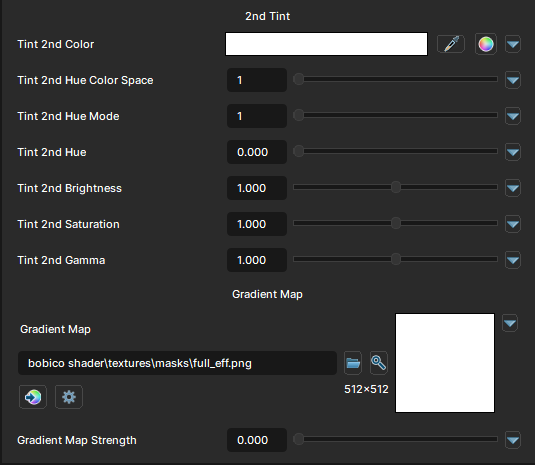
2nd Tint
2nd Tint is used when Tint Mask Type is set to 2. And, it tints the black areas of the Tint Mask.
2nd Tint Color
- UI Type : Color
Tints the black areas of the Tint mask with a specified color.
2nd Tint Hue Color Space
- UI Type : Slider
Int- Range :
1 - 2
- Range :
Selects a color space mode for color adjusting. OKLab is set by default.
| Number | Mode | Information |
|---|---|---|
| 1 | OKLab | OKLab is a modern color space designed to behave more like human vision. Color adjustments in OKLab appear smoother, more natural, more visually balanced. |
| 2 | HSV | HSV is simple and fast. HSV can sometimes oversaturate colors, shift brightness unexpectedly or create unnatural gradients. |
2nd Tint Hue Mode
- UI Type : Slider
Int- Range :
1 - 2
- Range :
| Number | Mode | Information |
|---|---|---|
| 1 | Shift | Tints the main color based on the existing color by blending correctly. |
| 2 | Replace | Directly applies the hue into main color as an override. |
2nd Tint Hue
- UI Type : Slider
Float- Range :
0.0 - 1.0
- Range :
Shift the main's color around on the hue circle. As the value is circular, it'll give you the same effect at 0 and 1.
2nd Tint Brightness
- UI Type : Slider
Float- Range :
0.0 - 2.0
- Range :
Controls the brightness of the tint mask's black areas.
2nd Tint Saturation
- UI Type : Slider
Float- Range :
0.0 - 2.0
- Range :
Controls the saturation of the tint mask's black areas.
A value of 0 makes the color fully desaturated while 2 makes the color more saturated.
2nd Tint Gamma
- UI Type : Slider
Float- Range :
0.0 - 2.0
- Range :
Controls the brightness of the tint mask black areas's mid-tone colors without significantly affecting pure black or pure white areas. Lower values are more lighter and higher values are more bolder.
Gradient Map
Gradient Map is used when Tint Mask Type is set to 3. And, it uses its own gradient map slot and use the mask as its masking.
Gradient Map
- UI Type : Color Texture
- Output format :
BC7 [RGBA]
Defines a gradient map for gradient mapping.
Gradient Map Strength
- UI Type : Slider
Float- Range :
0.0 - 2.0
- Range :
Controls the strength of the Gradient Map.