Physically-Based Rendering
PBR, also called as Physically-Based Rendering is a rendering method that simulates how light behaves in the real world. It uses physically accurate lighting rules. So, materials look consistent under different lighting conditions.
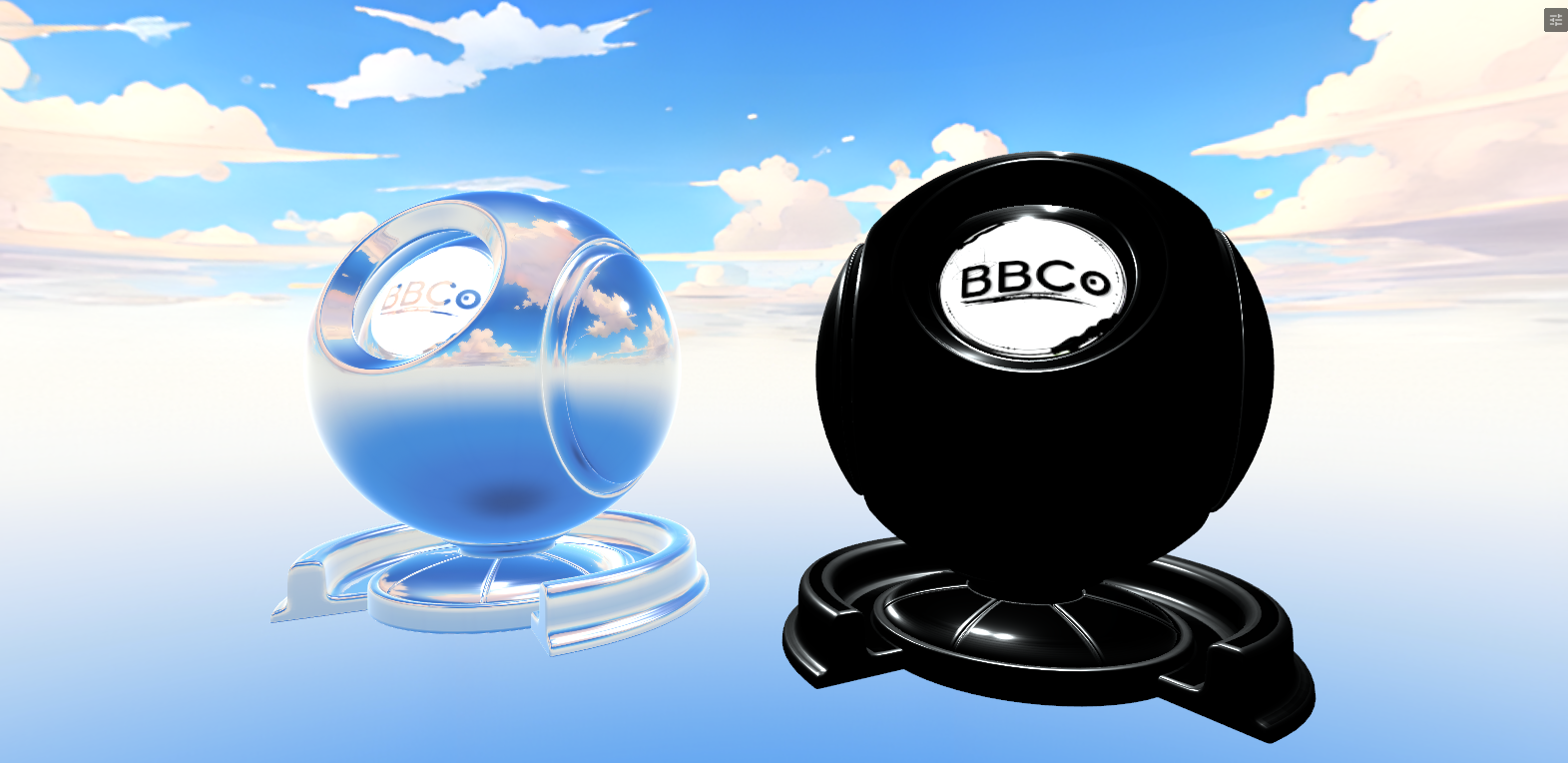
Physically-Based Rendering is not allowed in Fur shading mode to avoid extreme-load!
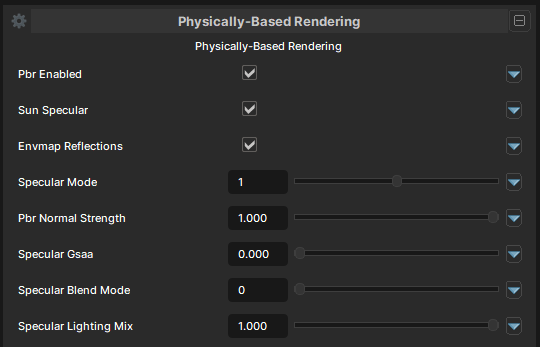
Physically-Based Rendering
PBR Enabled
- UI Type : Toggle
Enables Physically-Based Rendering for the material. Allowing it to react more realistically to scene lighting and reflections.
Sun Specular
- UI Type : Toggle
Enables Specular Lighting from Direction/Sun Light.
Envmap Reflections
- UI Type : Toggle
Enables Environment Reflections from Cubemaps.
Specular Mode
- UI Type : Slider
Int- Range :
0 - 2
- Range :
Selects Specular type for specular lighting.
| Number | Mode | Information |
|---|---|---|
| 0 | Disabled | Specular light is disabled. |
| 1 | Stylized/Toon | Enables Toon Specular. Allows you to use Toon Specular Settings. Specular GSAA may not work in this mode. |
| 2 | Realstic | Enables Normal Specular which is standard for most Physically-Based Rendering. Allows to use every settings except Toon Specular Settings. |
PBR Normal Strength
- UI Type : Slider
Float- Range :
0.0 - 1.0
- Range :
Controls the intensity of Normal Map specular adaptation. It'll make the specular lighting adapts to the normal maps.
Specular GSAA
- UI Type : Slider
Float- Range :
0.0 - 1.0
- Range :
Control the intensity of GSAA (Geometric Specular Anti-Aliasing). It is a technique that improves the quality of specular reflections. It uses the geometry of the model to modify the specular reflections in order to reduce Specular Aliasing, which is a visible artifact that occurs at high smoothness levels, especially with highly detailed models or normal maps.
Specular Blend Mode
- UI Type : Slider
Int- Range :
0 - 2
- Range :
Controls the blending mode for Specular Lighting. See Blend Modes.
For Specular Lighting, Only first four: Add, Screen, Replace and Multiply are available.
Specular Lighting Mix
- UI Type : Slider
Float- Range :
0.0 - 1.0
- Range :
Controls the Lighting Adaptation of Specular Lighting. A value of 0 will make it stay glow in dark areas while 1 will make it adapt to the lighting gently.
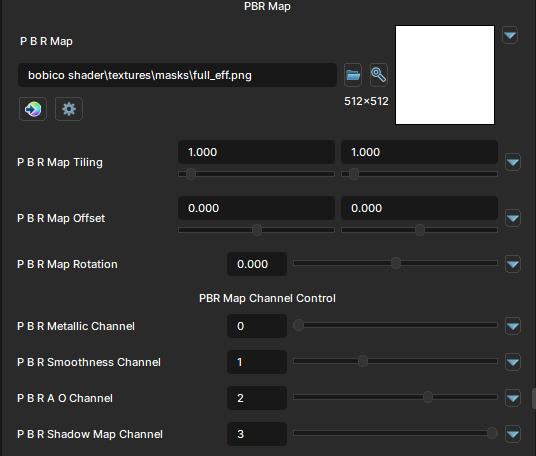
PBR Map Texture
PBR Map
- UI Type :
 Color Texture
 - Output format :
BC7 [RGBA]
Defines a PBR Map for Physically-Based Rendering. By default, Color channels of the map are used as R = Metallic, G = Smoothness/Roughness, B = Ambient Occlusion, A = Detail Shadowing Which is the same color channel mapping as MRAO texture.
But, you can control the color channels for each of them separately by using PBR Map Channel Control. UV Settings are available to use for the PBR Map if needed. AO is also usable separatly by AO Map.
PBR Map R/G/B/A Channel
- UI Type : Slider
Int- Range :
0 - 3
- Range :
Controls the PBR Map channel mapping by Red, Green, Blue and Alpha. You can use it to map each features to use a specific color channel. Can map more than one feature into only one channel.
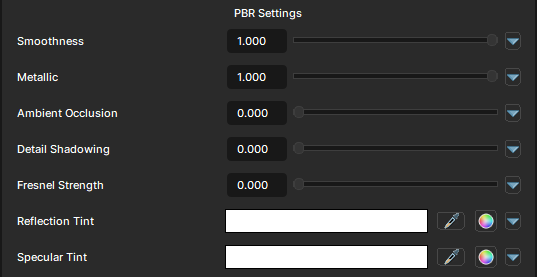
PBR Settings
Metallic
- UI Type : Slider
Float- Range :
0.0 - 1.0
- Range :
Controls the Metalness of the material's surface. Higher values gives metallic look and cubemap reflections will show up. By default, Metalness will use R channel of the PBR Map.
Smoothness
- UI Type : Slider
Float- Range :
0.0 - 1.0
- Range :
Controls the Smoothness of the material's surface. Lowering the values gives smoother specular lighting, Higher gives sharper specular lighting. By default, Smoothness will use G channel of the PBR Map.
Ambient Occlusion
- UI Type : Slider
Float- Range :
0.0 - 2.0
- Range :
Controls the Ambient Occlusion intensity. AO darkens the areas from the mask where ambient light is generally occluded. By default, Ambient Occlusion will use B channel of the PBR Map.
Detail Shadowing
- UI Type : Slider
Float- Range :
0.0 - 2.0
- Range :
Controls the Detail Shadows intensity.Detail Shadows darkens the areas from the mask and identical to AO except it darkens by the Direct Lighting instead of Indirect Lighting. By default, Detail Shadows will use A channel of the PBR Map.
Fresnel Strength
- UI Type : Slider
Float- Range :
0.0 - 1.0
- Range :
Controls the Fresnel effect of Cubemap Reflections.
Reflection Tint
- UI Type : Color
Tints the Cubemap Reflection color.
Specular Tint
- UI Type : Color
Tints the Specular Lighting color.

Toon Specular
Specular Mode must be set to 1 which is for Toon Specular. For using Reflection Mask from LilToon. You should set the every channel for PBR Map to 1 which is Red channel.
Toon Specular Area
- UI Type : Slider
Float- Range :
0.0 - 1.0
- Range :
Controls the area of Toon Specular. Lower values make the toon specular cover less area, while higher values make the toon specular cover more area.
Toon Specular Softness
- UI Type : Slider
Float- Range :
0.0 - 1.0
- Range :
Controls the softness of Toon Specular. Lower values make the toon specular fully sharp, while higher values make the toon specular softer.
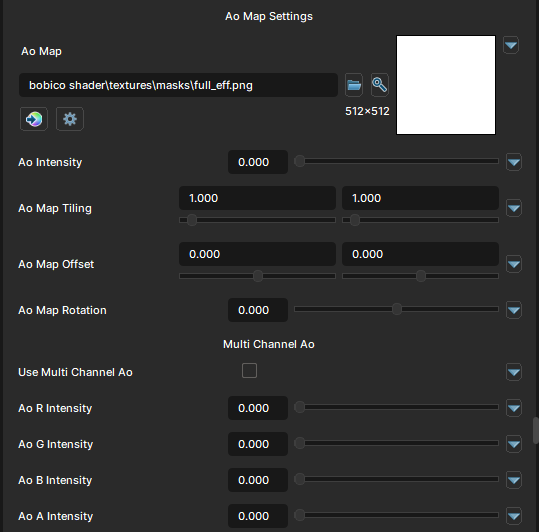
AO & Shadow Map
AO and Shadow Map are only available in Realistic rendering mode.
AO (Ambient Occlusion) is an effect that can be seen in physical environments that darken the area where ambient light is generally occluded. AO will adapts to the ambient lighting (Indirect) adaptively by only darkening when sun light or ambient lighting isn't reachable.
You can use it for darkening different areas of the material and can also the existing MRAO map for AO as well. Furthur more, You can use Multi-Channel AO for effectively usigng many AO for different areas in the same material or use it for many material by using only one AO map.
And, Shadow Maps can be used for adding detail shadows to different areas of the material. It's identical to AO Map except Shadow Map darkens the parts by Direct Lighting instead of Indirect. Shadows won't show up normally unless there are any Direct Lighting around. You can use it the same way as AO Map.
AO will only show up when ambient lighting or directional/sun lighting isn't directly pointing at the areas.
Shadows from Shadow map only show up when there are any direct lighting around.
AO Map
- UI Type : Color Texture
- Output format :
BC7 [RGBA]
Defines an AO (Ambient Occlusion) map. Grayscale and multi-channel packed AO can be used (with Multi-channel AO). UV Settings are available to use if needed.
AO Intensity
- UI Type : Slider
Float- Range :
0.0 - 2.0
- Range :
Controls the intensity of AO Map.
Use Multi Channel AO
- UI Type : Toggle
Enables Multi-Channel AO feature. It'll ignore the AO Intensity slider and use multi-channel intensity sliders instead.
AO R/G/B/A Intensity
- UI Type : Slider
Float- Range :
0.0 - 2.0
- Range :
Controls the AO seperately for each color channels. You can adjust AO from each color channel's intensity.
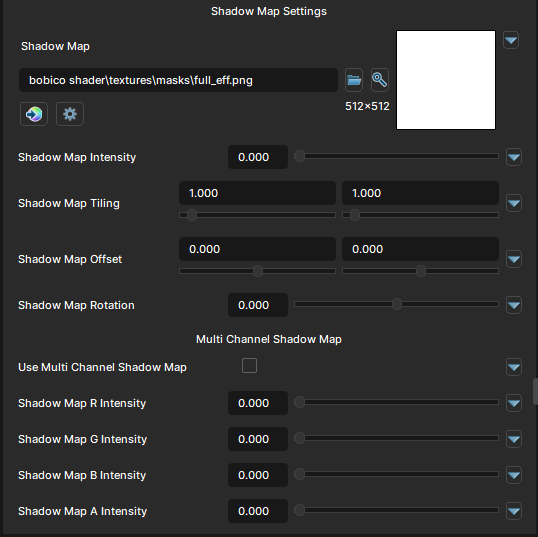
Shadow Map
- UI Type : Color Texture
- Output format :
BC7 [RGBA]
Defines a Shadow Map. Grayscale and multi-channel packed Shadow Map can be used (with Multi-channel Shadow Map). UV Settings are available to use if needed.
Shadow Map Intensity
- UI Type : Slider
Float- Range :
0.0 - 2.0
- Range :
Controls the intensity of Shadow Map.
Use Multi Channel Shadow Map
- UI Type : Toggle
Enables Multi-Channel Shadow Map feature. It'll ignore the Shadow Map Intensity slider and use multi-channel intensity sliders instead.
Shadow Map R/G/B/A Intensity
- UI Type : Slider
Float- Range :
0.0 - 2.0
- Range :
Controls the Shadow Map seperately for each color channels. You can adjust Shadows from each color channel's intensity.