Indirect Lighting
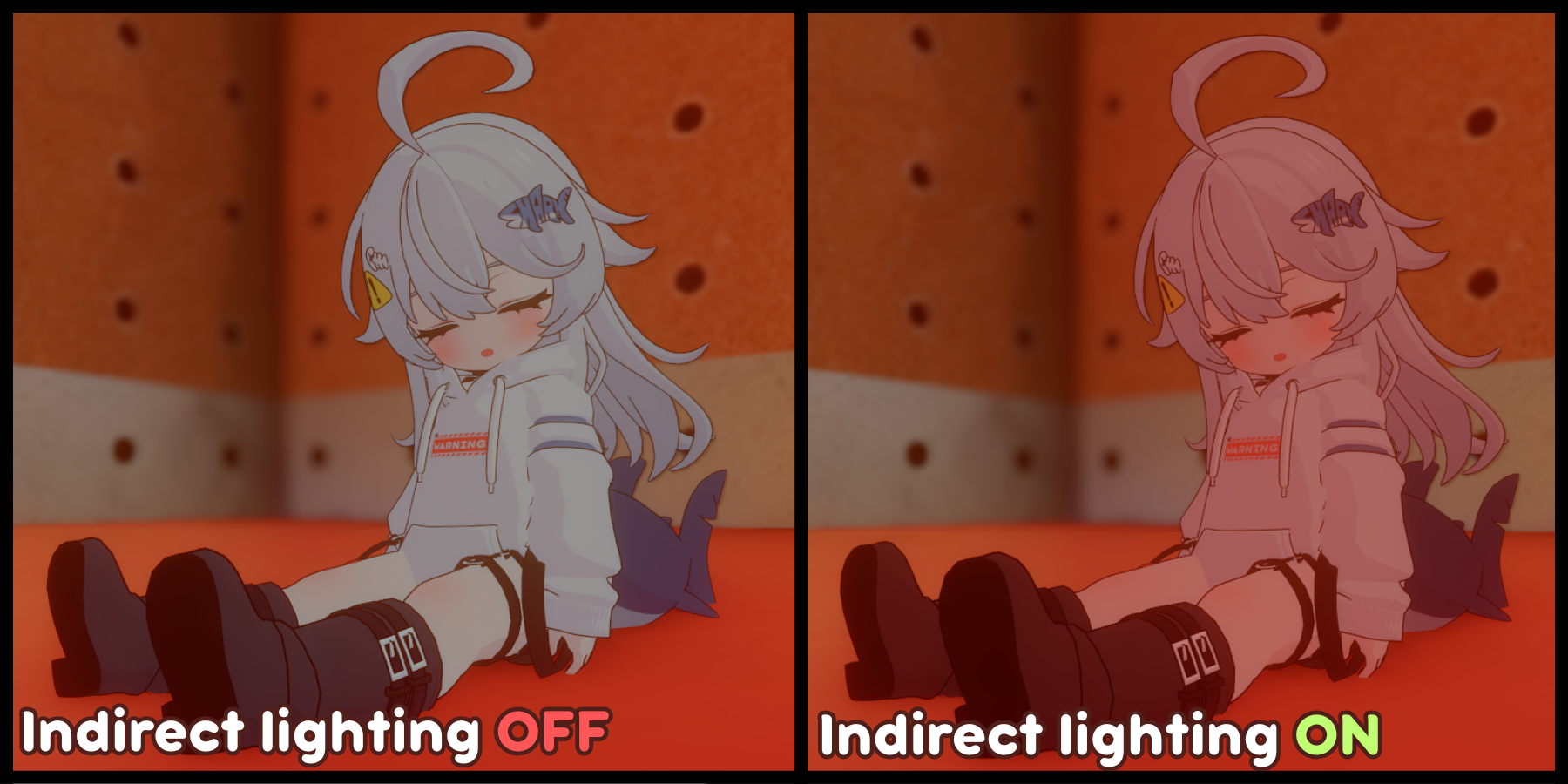
Indirect Lighting is a the light that illuminates a scene after bouncing off surfaces, rather than hitting the object directly from a light source. Our shader supports that by default and will samples the bounced lightings using Axis approximation.
It'll sample the indirect lighting from Up and Down only by default which is already good. But, you can use High Quality Indirect Lighting to make it samples full directional and improve the quality significantly. Your mesh will receive any indirect lighting if the map has them baked and samples them directly to your material.
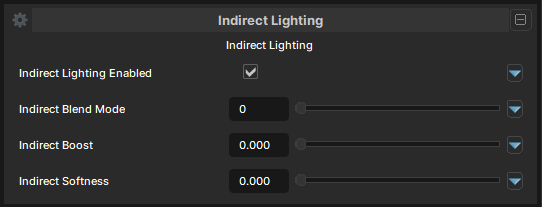
Indirect Lighting
Indirect Lighting Enabled
- UI Type : Toggle
Enables Indirect Lighting. It's on by default. Disable it if you don't really want it. seriously?
Indirect Lighting Mode
- UI Type : Slider
Int- Range :
1 - 2
- Range :
Selects between Fast and Expensive Indirect lighting type. By default. It'll make the indirect sampling use 2-axis (up-down) only instead of 6-axis sampling. You can use the 6-axis sampling if you want to capture full-direction. But, It's 66% more expensive than 2-axis sampling.
In Realistic mode, This option will not show up and will use engine stable sampling instead which only look good on realistic stuff.
Indirect Lighting Blend Mode
- UI Type : Slider
Int- Range :
1 - 2
- Range :
Controls the blending mode of Indirect Lighting to blend with the Main Color. Replace and Multiply are available for blending. But, Replace is recommended by default.
Indirect Lighting Boost
- UI Type : Slider
Float- Range :
0.0 - 2.0
- Range :
Boosts the Indirect Lighting. Only use if needed.
Indirect Lighting Softness
- UI Type : Slider
Float- Range :
0.0 - 1.0
- Range :
Softens the Indirect Lighting. Higher values make the effect more soften and less visible. Only use if needed.