Textures N' Formats
Main rule of using our shader is to provide textures or just use the color tint instead.
Some effects won't work correctly with color only. A texture must be provided or placeholder can be used if that happens!
Main information
S&box's Material System
S&box is based on Source 2 which means some of the system (Including the textures & materials) are from Source 2. In Source 2, The textures you imported/used gets compiled as Vtex with _c prefix at the end. For materials, They're written inside Vmat in text-form. Which is editable by text editors if you want to.
Currently, S&box offers many texture formats when they're used/compiled. Most common ones being DXT1/5 for compressed or BC7 for better compression without quality loss. ANT1N is also used in the shader for mask textures which should only read one channel.
You don't need to specify or select texture formats when you import your image textures. We coded what's best for between Performance & Quality in our shader.
Image Formats
S&box support variety of texture formats to use for textures and other things. It supports PNG, JPG, TGA, PSD, TIF, PFM, MKS and EXR (HDR). You shouldn't use JPEG if you don't want to lose any quality as it's a lossy format and bad. Obviously.
Image Resolution
In S&box, You should only use Power-of-Two dimension textures. Example of Power-of-Two: "256, 512, 1024, 2048, 4096.. etc".
They can be a square or non-square textures. But, they should be Power-of-Two. Or, it'll not work as expected.
You can also downscale your textures using Photoshop, GIMP and any other photo softwares to power-of-two if your textures are non-power-of-two.
Mask Textures
Most of our features has masking features to make the effect only show up in the area the user want to be in. Shader only reads the R (Red) channel of the mask texture as masks are Grayscale (B&W) and one channel is enough for it.
It also saves Video memory and Compiled texture size.
UV Settings
Tiling, Offset and Rotation
Our shader supports UV Settings for textures and masks. Such as Tiling & Offset and more if available. Here's how they works.
Tiling controls how many times main color texture repeats across a 3D model's surface.
A value of less than 1.0 will narrow down the main color texture while more than 1.0 will create more tiles of the same main color.
X and Y value are available for left-to-right or down-to-up.
Offset shifts the placement of the main color texture across a 3D model’s surface.
A value of less than 0.0 or more will shift the texture to down or up. A value of -1.0 and 1.0 produces the same result as 0.0.
X and Y value are available for left-to-right or down-to-up.
Rotation rotates the placement of the main color texture across a 3D model’s surface. A value of -180 and 180 produces the same result.
UV Animation
Our shader also supports UV Animations for scrolling, moving and rotating the texture just by moving the UV only. **Scroll Here's how they works.
Scroll moves the placement of the main color texture by moving the UV only, creating the illusion of movement without moving the object itself. X and Y value are available for left-to-right or down-to-up.
Rotate rotates the placement of the main color texture.
A value less than 0.0 or more will start rotating the texture to left or right. More than 1.0 will speed up the rotate animation.
Color adjustments
OKLab & HSV
For color space, We support OKLab and HSV. HSV is simple and fast, but it is not perceptually uniform. This means changing colors in HSV can sometimes oversaturate colors, shift brightness unexpectedly or create unnatural gradients.
OKLab is a modern color space designed to behave more like human vision. Color adjustments in OKLab appear smoother, more natural, more visually balanced.
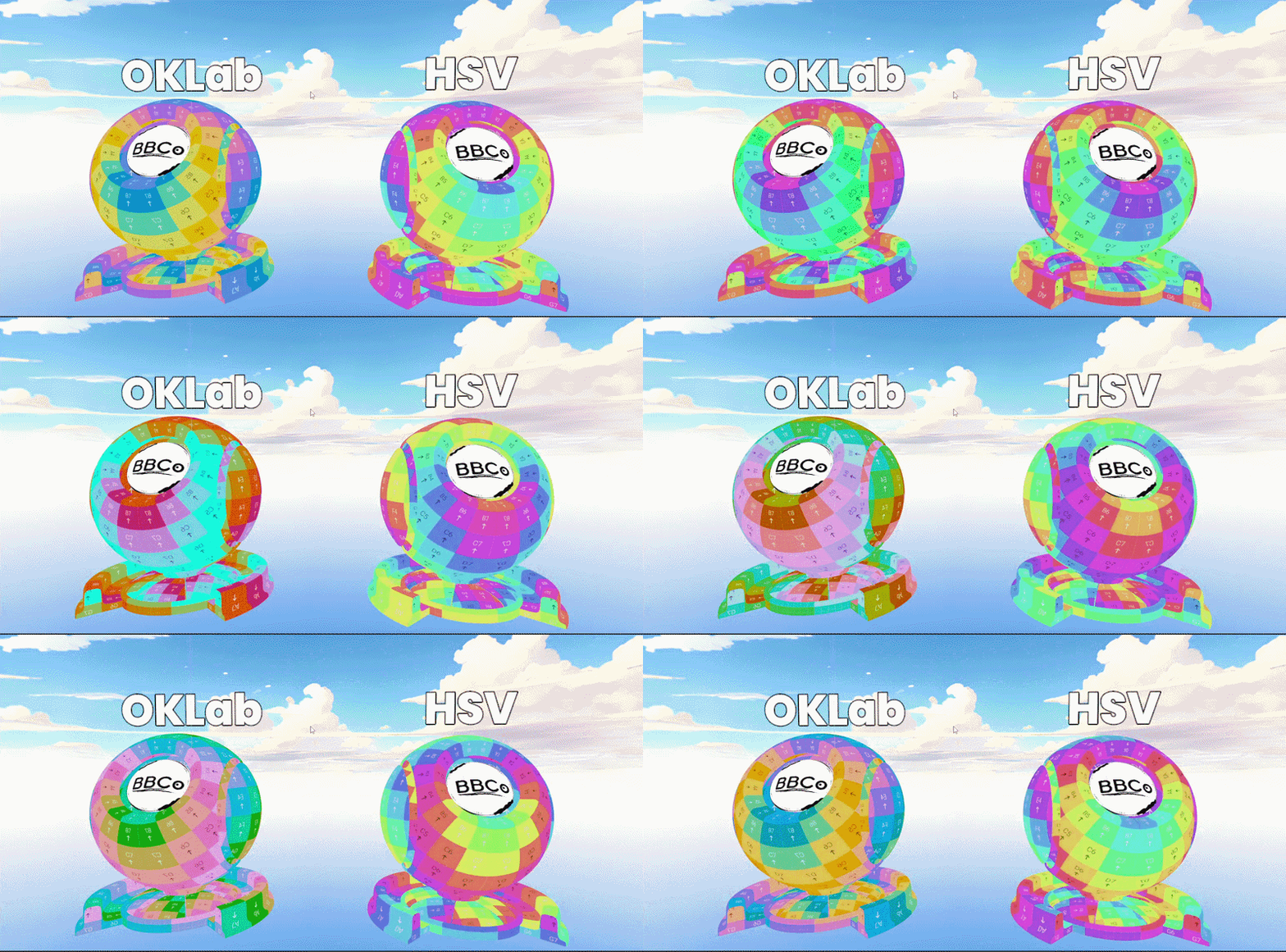
Shader will use OKLab by default and we strongly recommend you to use it. You can still use HSV if needed for some cases.
Hue
Shift the color around on the Hue Circle. As the value is circular, it'll give you the same effect at 0 and 1.
Hue Speed
Shift the main's color around on the hue circle by its own. It can be used for all-time color changing effects.
Saturation
Controls the saturation of the color.
A value of 0 makes the color fully desaturated while 2 makes the color more saturated.
Brightness
Controls the brightness of the color. This increases the brightness of the color but will still be affected by the lighting.
Gamma
Controls the brightness of mid-tone colors without significantly affecting pure black or pure white areas. Lower values are more lighter and higher values are more bolder.
Blend Modes
In the shader, you can select 7 different blending modes for most of the features that has blending. Other features such as shading will only allow three or four. This is an information table on all blending modes the shader has.
| Number | Mode | Information |
|---|---|---|
| 0 | Add | This mode adds the color values of the top layer directly to the bottom layer. Blending with black causes no change, while any other color makes the result drastically brighter. |
| 1 | Screen | This mode inverts both layers, multiplies them together, and then inverts that result. This produces a softer, more realistic brightening effect than Add because it mathematically prevents clipping to pure white. |
| 2 | Replace | This mode completely bypasses color math and transparency rules. The pixels of the incoming top layer completely overwrite the canvas data below. |
| 3 | Multiply | This mode multiplies the colors of a top layer with the layer beneath it. |
| 4 | Darken | This mode compares the RGB channels of both layers and retains only the darker values. Any pixel on the top layer that is lighter than the bottom layer disappears. |
| 5 | Lighten | This mode compares the individual Red, Green, and Blue channels of both layers and strictly keeps whichever value is lighter. |
| 6 | Subtract | This mode subtracts the color values of the top layer from the bottom layer. If the math results in a negative value, the pixel clips to pure black. Blending with white completely forces the background to black, while blending with black has no effect. |
| 7 | Overlay | This mode acts as a hybrid by combining Screen and Multiply based on the brightness of the bottom layer. If the bottom layer is light, it uses Screen to make it brighter; if the bottom layer is dark, it uses Multiply to make it darker. Pure 50% gray on the top layer is completely neutral and disappears. |