Emission
Emission section is for adding glow or a source that glows on its own. You can use it when you want to make something glow like Neon Signs, Light objects or add a glowing part to your model.
2nd Emission is also available if Enable Extra Layers is enabled in the sidebar.
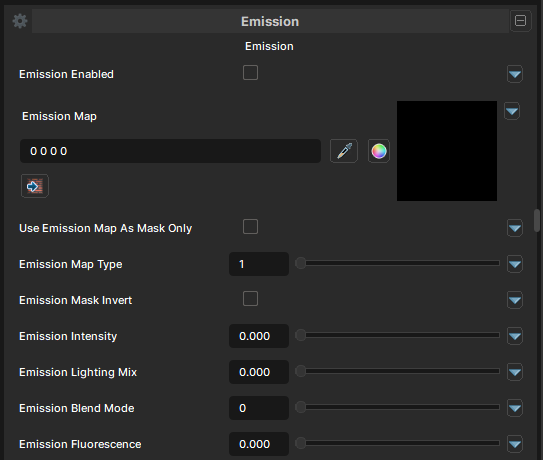
Emission Map
Emission Enabled
- UI Type : Toggle
Enables the Emission feature. Allowing you to add glow to your material.
Emission Map
- UI Type :
 Color Texture
 - Output format :
BC7 [RGBA]
Defines an Emission Map to use as emission for glow. RGB of the map is used for the color of emission and Alpha is used for masking. UV Settings, UV Animation and Color Adjustments settings are available to use if needed.
Use Emission Map as Mask Only
- UI Type : Toggle
Use the Emission Map as Grayscale Mask only. You can use this when you only have a Grayscale Mask for the Emission. It'll determines which area should be glow.
Emission Map Type
- UI Type : Slider
Int- Range :
1 - 2
- Range :
Selects between the Emission Map and Gradient Map for emission. Emission Map samples the emission normally. While Gradient Map samples Gradiation Emission Mapping.
Emission Intensity
- UI Type : Slider
Float- Range :
0.0 - 5.0
- Range :
Controls the intensity of Emission.
A value of 1 can be enough to make the color glow. More than 1 can make the emission make more glow and give Bloom effect if Bloom post-processing is used.
Emission Lighting Mix
- UI Type : Slider
Float- Range :
0.0 - 1.0
- Range :
Controls the Lighting Adaption of Emission. A value of 0 will make it stay glow in dark areas while 1 will make it adapt to the lighting gently.
This can be used when you only want to boost the material's brightness while still making it adapts to the lighting. Lit Intensity can be used for this case as well.
Emission Blend Mode
- UI Type : Slider
Int- Range :
0 - 7
- Range :
Controls the blending mode of Emission to blend with the Main Color. See Blend Modes.
Emission Fluorescence
- UI Type : Slider
Float- Range :
0.0 - 1.0
- Range :
Controls how the Emission appears in dark areas. It'll only glow when your character is in the dark areas and won't do anything in bright areas. This is used when you want to keep something a bit glow in dark areas without adding more emission brightness on top.
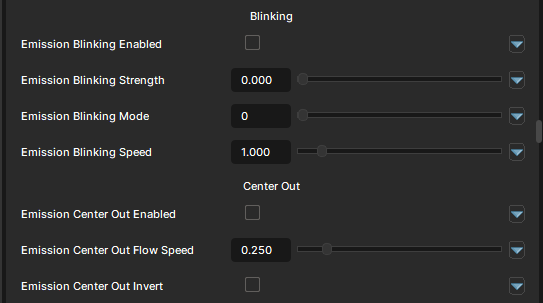
Emission Blinking
Emission Blinking Enabled
- UI Type : Toggle
Enables the Blinking feature for Emission. It makes your emission blinks (glows and goes back to its original state).
Emission Blinking Strength
- UI Type : Slider
Float- Range :
0.0 - 1.0
- Range :
Controls the intensity of Emission Blinking. More value makes the blinking more visible.
Emission Blinking Mode
- UI Type : Slider
Int- Range :
0 - 1
- Range :
Selects the blinking mode between Smooth and Constant.
Emission Blinking Speed
- UI Type : Slider
Float- Range :
0.0 - 10.0
- Range :
Controls the Emission Blinking's speed. More value will make it faster.
Emission Center Out
Emission Center Out Enabled
- UI Type : Toggle
Enables the Center Out feature for Emission. It makes your emission move from the center of the material to the edges smoothly.
Emission Center Out Flow Speed
- UI Type : Slider
Float- Range :
0.0 - 2.0
- Range :
Controls the Flow Speed of the Center Out effect. More value will make it faster.
Emission Center Out Invert
- UI Type : Toggle
Makes the Center Out effect works inversely. It'll make your emission move from the edges to the center instead.