Rim Lighting
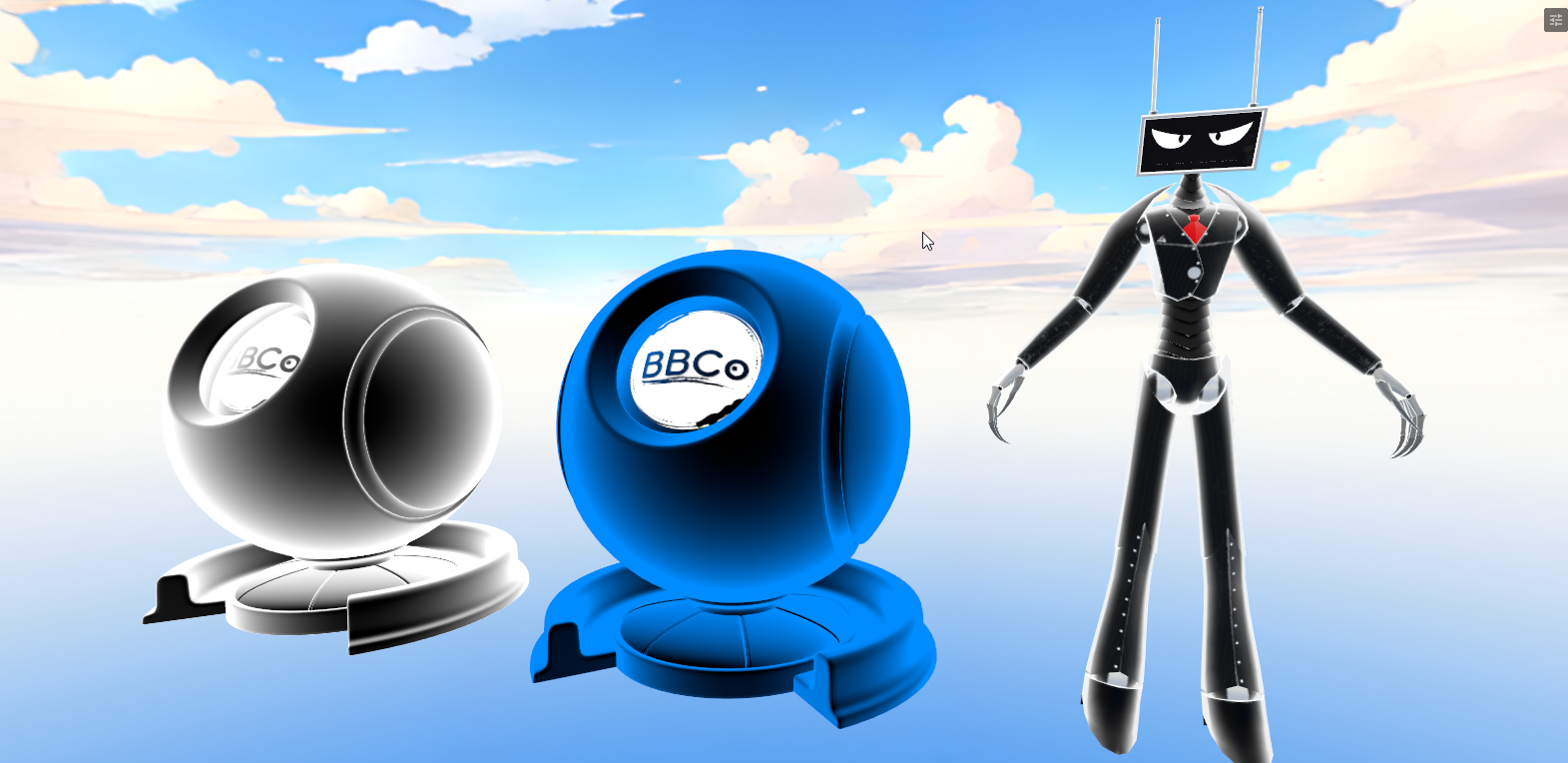
Rim Lighting is a lighting technique where a light source is placed behind or to the side of a subject to illuminate its outer edges. The effect will change depending on view direction as it is a Fresnel effect.
Rim Lighting
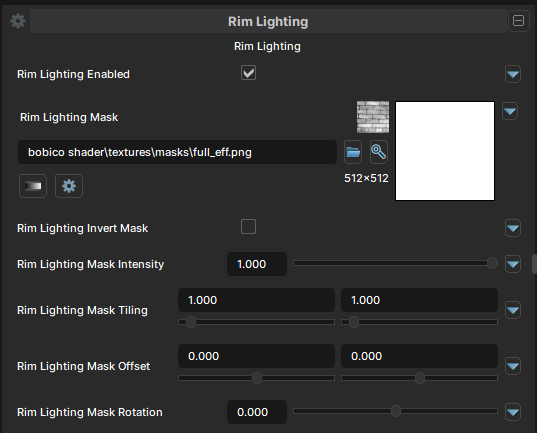
Rim Lighting Enabled
- UI Type : Toggle
Enables Rim Lighting feature. It allows you to create a effect of light wrapping around the objects or characters which makes them stands out more from the background.
Rim Lighting Mask
- UI Type :
 Mask Texture
- Output format :
AIT1N [R]
- Output format :
Defines a Rim Lighting Mask for masking Rim Lighting. You can make the effect only show up in some areas of the material. UV Settings and Invert Mask settings are available to use if needed.
Rim Lighting Mask Intensity
- UI Type : Slider
Float- Range :
0.0 - 1.0
- Range :
Controls the intensity of Rim Lighting Mask.
Rim Lighting Settings
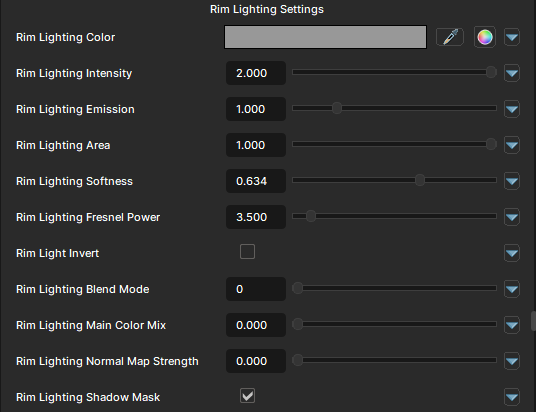
Rim Lighting Color
- UI Type : Color
Tints the Rim Lighting effect's color.
Rim Lighting Intensity
- UI Type : Slider
Float- Range :
0.0 - 1.0
- Range :
Controls the intensity of Rim Lighting effect.
Rim Lighting Emission
- UI Type : Slider
Float- Range :
0.0 - 5.0
- Range :
Boosts the Rim Lighting effect with emission. A value of 1 can be enough to make the color glow. More than 1 can make the emission make more glow and give Bloom effect if Bloom post-processing is used.
Rim Lighting Area
- UI Type : Slider
Float- Range :
0.0 - 1.0
- Range :
Controls the area of Rim Lighting. This sets the border between the effect's and lit areas. Lower values make the effect cover less area, while higher values make the effect cover more area.
Rim Lighting Softness
- UI Type : Slider
Float- Range :
0.0 - 1.0
- Range :
Controls the hardness and smoothness of the Rim Lighting. This can be used to adjust between hard shading and softer, more realistic effect. Lower values make the effect fully sharp, while higher values make the effect softer.
Rim Lighting Fresnel Power
- UI Type : Slider
Float- Range :
0.0 - 1.0
- Range :
Controls the intensity of the fresnel portion of Rim Lighting.
Rim Lighting Invert
- UI Type : Toggle
Inverts the Rim Lighting effect to work inversely. Making the effect show up on the middle area and no effect at the edges instead.
Rim Lighting Blend Mode
- UI Type : Slider
Int- Range :
0 - 7
- Range :
Controls the blending mode of Rim Lighting to blend with the Main Color. See Blend Modes.
Rim Lighting Use Alpha
- UI Type : Toggle
Blends Rim Lighting effect with the alpha of the material.
Rim Lighting Main Color Mix
- UI Type : Slider
Float- Range :
0.0 - 1.0
- Range :
Multiplies the Rim Lighting effect's color with the Main Color.
Rim Lighting Normal Map Strength
- UI Type : Slider
Float- Range :
0.0 - 1.0
- Range :
Controls the Normal Adaption of Rim Lighting. It blends the effects with your material's normals.
Rim Lighting Shadow Mask
- UI Type : Toggle
Hides the Rim Lighting effect in shadow shaded areas.
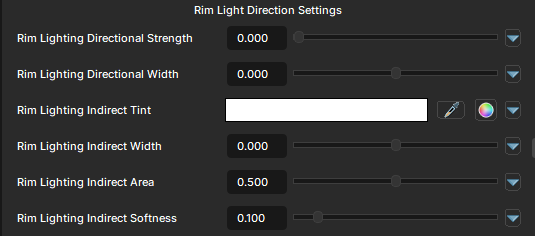
Rim Lighting Directional Settings
Rim Lighting Directional Settings allows you to controls two sides of Rim Lighting. The first one being Directional/Sun Light side and the second one being Indirect (Ambient) side.
Indirect side may appears static. But, it only changes depending on the ambient lighting of the environment.
Rim Lighting Directional Strength
- UI Type : Slider
Float- Range :
0.0 - 1.0
- Range :
Controls the strength of the Direction/Sun Light for the rim lighting. Rim Lighting Directional Width will be usable when used.
Rim Lighting Directional Width
- UI Type : Slider
Float- Range :
-1.0 - 1.0
- Range :
Controls the width of the Directional Rim Lighting.
Rim Lighting Indirect Tint
- UI Type : Color
Tints the Indirect (Ambient) side of Rim Lighting.
Rim Lighting Indirect Width
- UI Type : Slider
Float- Range :
-1.0 - 1.0
- Range :
Controls the width of the Indirect Rim Lighting.
Rim Lighting Indirect Area
- UI Type : Slider
Float- Range :
0.0 - 1.0
- Range :
Controls the area of Indirect Rim Lighting.
Rim Lighting Indirect Softness
- UI Type : Slider
Float- Range :
0.0 - 1.0
- Range :
Controls the softness of Indirect Rim Lighting.