Backlit
Backlit is a stylized feature that can be used to create the effect of lighting from behind, It's the same style seen in Anime illustrations. The effect will change depending on where direction light is located.
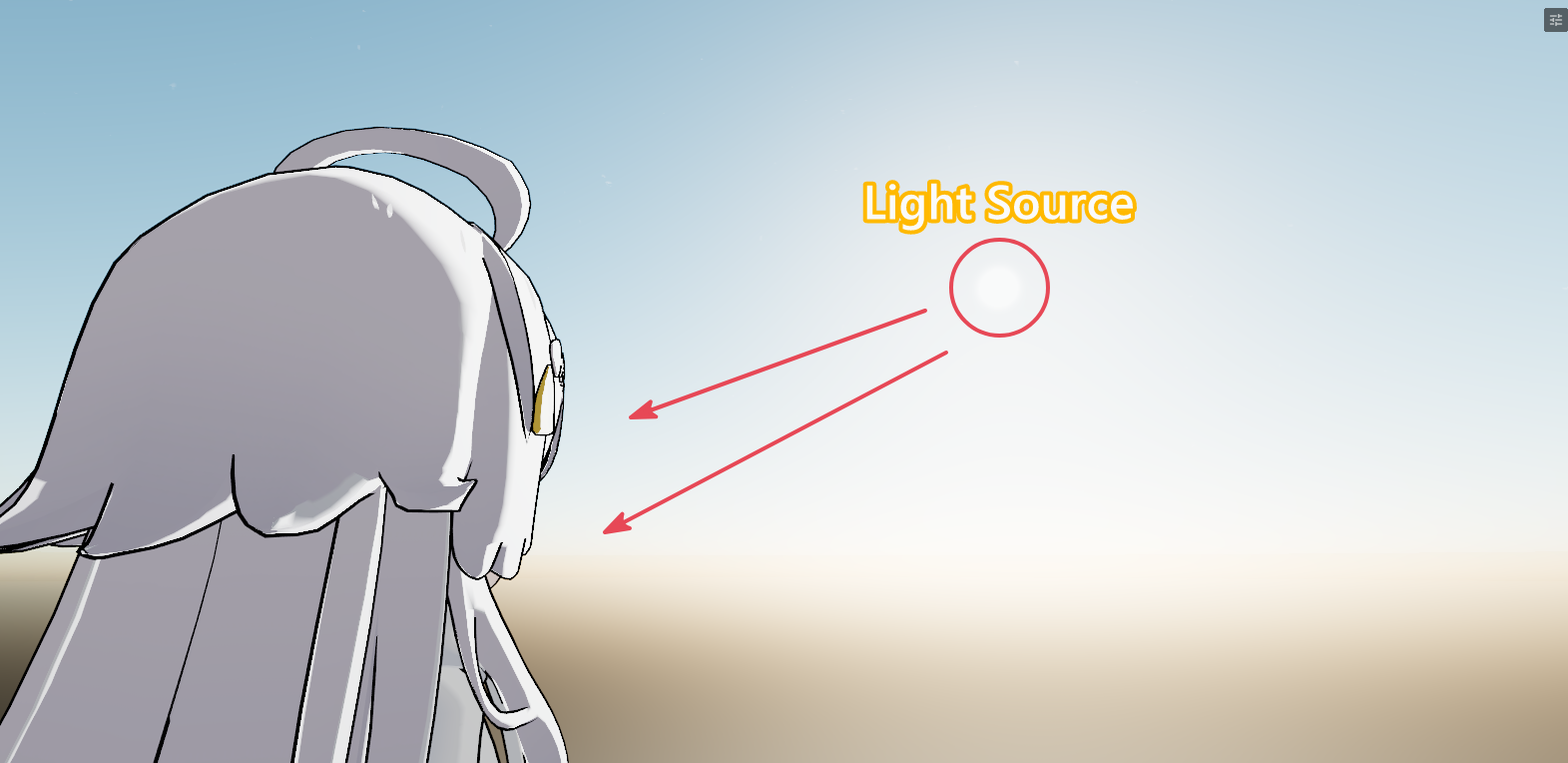
Backlit is a bit different from Rim Lighting as Backlit only show up when direction light is pointing from behind and view camera is in opposite side and follows the light source, while Rim Lighting can be used as a fancy fresnel effect.
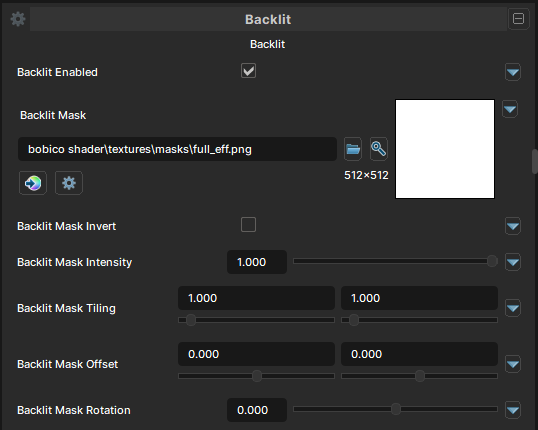
Backlit
Backlit Enabled
- UI Type : Toggle
Enables Backlit feature. Allowing you to add a backlighting shading that adapts to Directional/Sun light.
Backlit Mask
- UI Type :
 Mask Texture
- Output format :
AIT1N [R]
- Output format :
Defines a Backlit Mask for masking. You can make the effect only show up in some areas of the material. UV Settings and Invert Mask settings are available to use if needed.
Backlit Mask Intensity
- UI Type : Slider
Float- Range :
0.0 - 1.0
- Range :
Controls the intensity of Backlit Mask.

Backlit Settings
Backlit Color
- UI Type : Color
Tints the Backlit effect's color.
Backlit Intensity
- UI Type : Slider
Float- Range :
0.0 - 1.0
- Range :
Controls the intensity of Backlit effect.
Backlit Emission
- UI Type : Slider
Float- Range :
0.0 - 5.0
- Range :
Boosts the Backlit effect with emission.
A value of 1 can be enough to make the color glow. More than 1 can make the emission make more glow and give Bloom effect if Bloom post-processing is used.
Backlit Area
- UI Type : Slider
Float- Range :
0.0 - 1.0
- Range :
Controls the area of Backlit. This sets the border between the effect's and lit areas. Lower values make the effect cover less area, while higher values make the effect cover more area.
Backlit Softness
- UI Type : Slider
Float- Range :
0.0 - 1.0
- Range :
Controls the hardness and smoothness of the Backlit. This can be used to adjust between hard shading and softer, more realistic effect. Lower values make the effect fully sharp, while higher values make the effect softer.
Backlit Directivity
- UI Type : Slider
Float- Range :
0.0 - 32.0
- Range :
Controls the amount of brightness in degrees that change according to the direction of the directional light.
Backlit View Direction Strength
- UI Type : Slider
Float- Range :
0.0 - 2.0
- Range :
Controls the degree to which the brightness is changed according to the direction of the directional light.
Backlit Normal Strength
- UI Type : Slider
Float- Range :
0.0 - 1.0
- Range :
Controls the Normal Adaption of Backlit. It blends the effects with your material's normals.